A polyfill for the HTML switch element

In Safari 17.4, the WebKit team at Apple shipped a native HTML switch element. The core idea is that an <input type="checkbox"> can progressively be enhanced to become a switch by adding the switch attribute. Browsers that don't support the switch attribute will just silently ignore it and render the switch as a regular checkbox. At the time of this writing, Safari version 17.4 and later is the only browser to support the new switch element natively. This blog post introduces a polyfill that brings almost native support to browsers that lack it.

The markup below shows you how you use the switch element. If your browser doesn't support the element natively and you view this page on my blog directly (that is, not in your feed reader), the polyfill should have already kicked in and you should see two switch controls below the code sample: one regular switch, and one with a red accent-color.

<label>Toggle me <input type="checkbox" switch checked /></label>

<style>
  .special {
    accent-color: red;
  }
</style>
<label
  >Toggle me, I'm special <input type="checkbox" switch checked class="special"
/></label>

Accessibility

If a checkbox becomes a switch, the browser automatically applies the ARIA switch role. This role is functionally identical to the checkbox role, except that instead of representing "checked" and "unchecked" states, which are fairly generic in meaning, the switch role represents the states "on" and "off". The polyfill does this for you.

When your users have the prefers-contrast setting enabled to convey that they prefer more contrast, the polyfill adds more visible borders. Some operating systems like Windows or browsers like Firefox additionally support a high contrast mode. The polyfill also has support for that.

The macOS operating system additionally has an accessibility setting to Differentiate without color, which causes switch controls to get rendered with additional visual on/off indicators. Since there is currently no direct CSS media query for this specific preference, I opted to display these indicators whenever a high-contrast preference is detected, ensuring maximum clarity for those who need it.

A common accessibility challenge with switches identified in research (that predates the HTML switch control) is an uncertainty whether the user should tap or slide the switch to change its state. The polyfill, like the native counterpart in Safari, supports both. Another challenge is whether the label "on" indicates the current state of the switch or the resulting state after interacting with it. I personally think smartphones—most notably the iPhone—have taught people how to use switches, but I still recommend you do your own usability research before adding a switch to your site.

Internationalization, and styling

The polyfill supports the various writing-mode options, like "vertical-lr".

It's also aware of the directionality of text via the dir attribute.

Status in HTML

The switch element was proposed to be included in HTML in Issue #4180 filed in November 2018. PR #9546 (opened in July 2023) proposed a fix and was approved by Anne van Kesteren in August 2023. At the time of this writing, the PR to the HTML spec is still open, with concerns from several stakeholders, including from Google.

I am not and was not part of the standardization discussion around the element, I just personally like the progressive enhancement pattern that reminds me of the pattern used in customizable <select> elements that in the case of non-support just get rendered as regular selects.

Get the polyfill

You can get the polyfill from npm and find the code on GitHub. The README has detailed usage instructions that I won't repeat here, including important tips on how to avoid FOUC (Flash of Unstyled Content). You can also play with a demo of the polyfill that shows off more features of the polyfill, like all the various writing modes, and the different ways to style the switch. And with that: happy switching!

Thomas Steiner
This post appeared first on https://blog.tomayac.com/2026/01/12/a-polyfill-for-the-html-switch-element/.

A polyfill for the HTML switch element

In Safari 17.4, the WebKit team at Apple shipped a native HTML switch element. The core idea is that an <input type="checkbox"> can progressively be enhanced to become a switch by adding the switch attribute. Browsers that don't support the switch attribute will just silently ignore it and render the switch as a regular checkbox. At the time of this writing, Safari version 17.4 and later is the only browser to support the new switch element natively. This blog post introduces a polyfill that brings almost native support to browsers that lack it.

The markup below shows you how you use the switch element. If your browser doesn't support the element natively and you view this page on my blog directly (that is, not in your feed reader), the polyfill should have already kicked in and you should see two switch controls below the code sample: one regular switch, and one with a red accent-color.

<label>Toggle me <input type="checkbox" switch checked /></label>

<style>
  .special {
    accent-color: red;
  }
</style>
<label
  >Toggle me, I'm special <input type="checkbox" switch checked class="special"
/></label>

Accessibility

If a checkbox becomes a switch, the browser automatically applies the ARIA switch role. This role is functionally identical to the checkbox role, except that instead of representing "checked" and "unchecked" states, which are fairly generic in meaning, the switch role represents the states "on" and "off". The polyfill does this for you.

When your users have the prefers-contrast setting enabled to convey that they prefer more contrast, the polyfill adds more visible borders. Some operating systems like Windows or browsers like Firefox additionally support a high contrast mode. The polyfill also has support for that.

The macOS operating system additionally has an accessibility setting to Differentiate without color, which causes switch controls to get rendered with additional visual on/off indicators. Since there is currently no direct CSS media query for this specific preference, I opted to display these indicators whenever a high-contrast preference is detected, ensuring maximum clarity for those who need it.

A common accessibility challenge with switches identified in research (that predates the HTML switch control) is an uncertainty whether the user should tap or slide the switch to change its state. The polyfill, like the native counterpart in Safari, supports both. Another challenge is whether the label "on" indicates the current state of the switch or the resulting state after interacting with it. I personally think smartphones—most notably the iPhone—have taught people how to use switches, but I still recommend you do your own usability research before adding a switch to your site.

Internationalization, and styling

The polyfill supports the various writing-mode options, like "vertical-lr".

It's also aware of the directionality of text via the dir attribute.

Status in HTML

The switch element was proposed to be included in HTML in Issue #4180 filed in November 2018. PR #9546 (opened in July 2023) proposed a fix and was approved by Anne van Kesteren in August 2023. At the time of this writing, the PR to the HTML spec is still open, with concerns from several stakeholders, including from Google.

I am not and was not part of the standardization discussion around the element, I just personally like the progressive enhancement pattern that reminds me of the pattern used in customizable <select> elements that in the case of non-support just get rendered as regular selects.

Get the polyfill

You can get the polyfill from npm and find the code on GitHub. The README has detailed usage instructions that I won't repeat here, including important tips on how to avoid FOUC (Flash of Unstyled Content). You can also play with a demo of the polyfill that shows off more features of the polyfill, like all the various writing modes, and the different ways to style the switch. And with that: happy switching!

Thomas Steiner
This post appeared first on https://blog.tomayac.com/2026/01/12/a-polyfill-for-the-html-switch-element/.

Using the Web Monetization API for fun and profit

I recently spoke at JSConf Mexico, where spent a lot of time with the Interledger Foundation folks in the hallway track and at the after party events, namely with Ioana (Eningeering Manager) and Marian (DevRel) to talk about Web Monetization.

Web Monetization gives publishers more revenue options and audiences more ways to sustain the content they love. Support can take many forms: from a one-time contribution to a continuous, pay-as-you-browse model. It all flows seamlessly while people engage with the content they love. Publishers earn the moment someone engages, while audiences contribute in real time, using a balance they control.

I encourage you all to give it a try! Install the extension that polyfills the proposed Web standard, get a wallet (I went with GateHub, which works in US Dollars and Euros), and then connect it to the extension.

You need to have funds in EUR (€) or USD ($). If you have crypto, it won't work, which I've found out by trial and error, as I was part of Coil, the Web Monetization predecessor, which paid out in XRP.

Just to clarify, while you need a wallet—that typically is used for crypto—the actual transactions are all in real fiat money, Euro in my case.

As an extension user

Connect your wallet, and browse to a page that supports Web Monetization. You will notice whether a page is monetized when the extension has a green checkmark. My blog happens to be monetized.

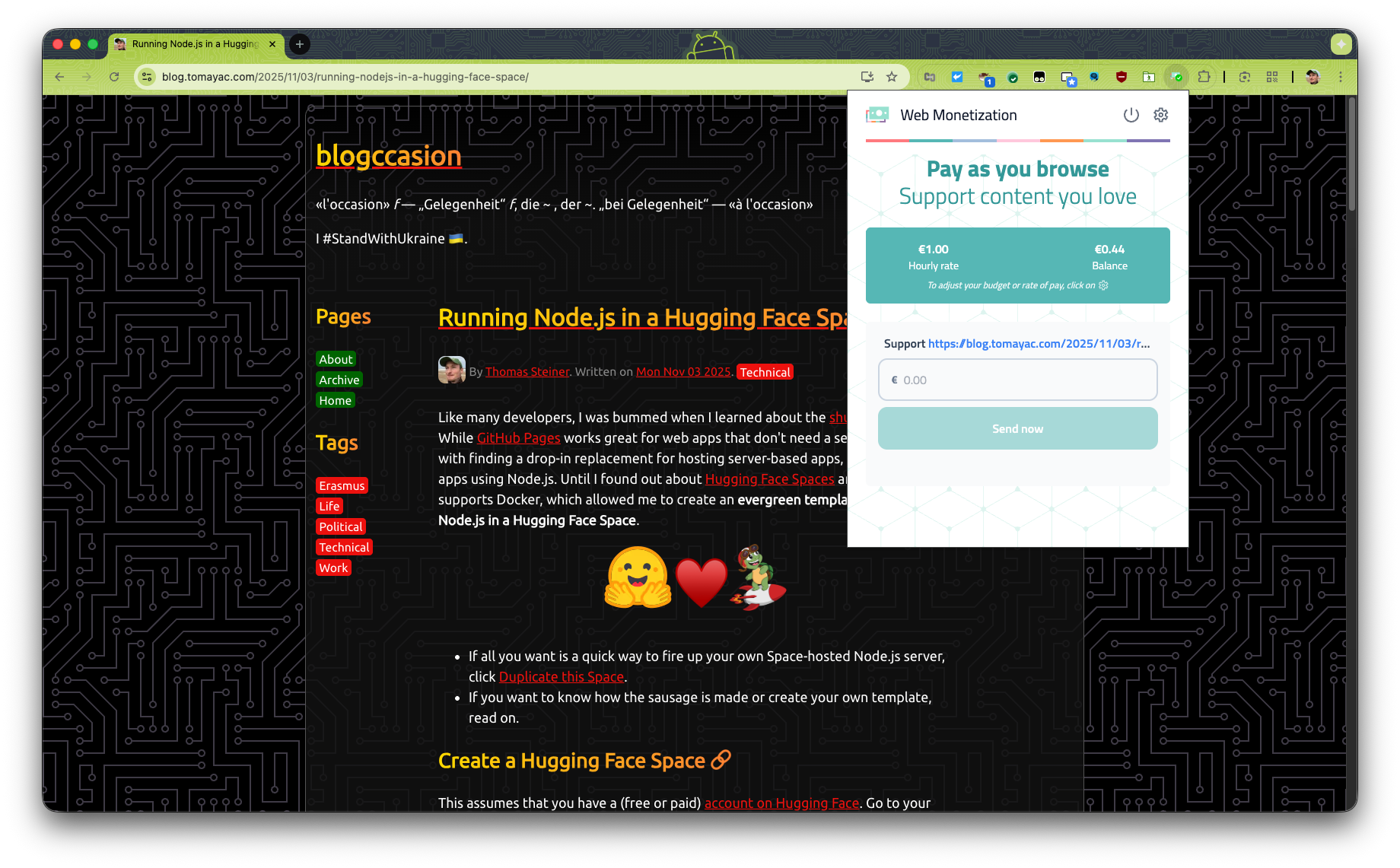
The Web Monetization extensions's popup window.

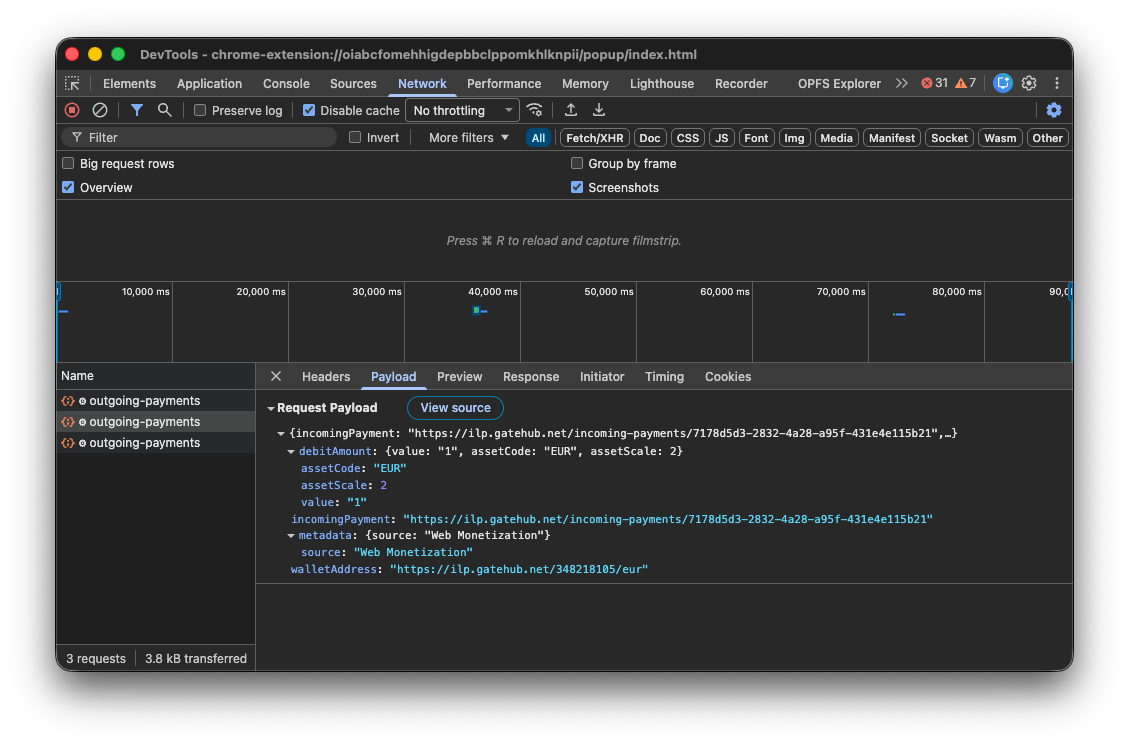
You can adjust how much you want to pay the site per hour and also send one-time payments. The money is "streamed" every minute, which you can observe in DevTools.

Chrome DevTools Network tab showing a POST request for a payment.

We actually have code in Chromium to make native Web Monetization happen, implemented by Igalia and funded by the Interledger Foundation. I hope they can share the experiment results soon.

As a publisher

On your page, add a payment link. You get the personalized payment pointer from your wallet. The following snippet shows mine.

<link rel="monetization" href="https://ilp.gatehub.net/348218105/eur" />

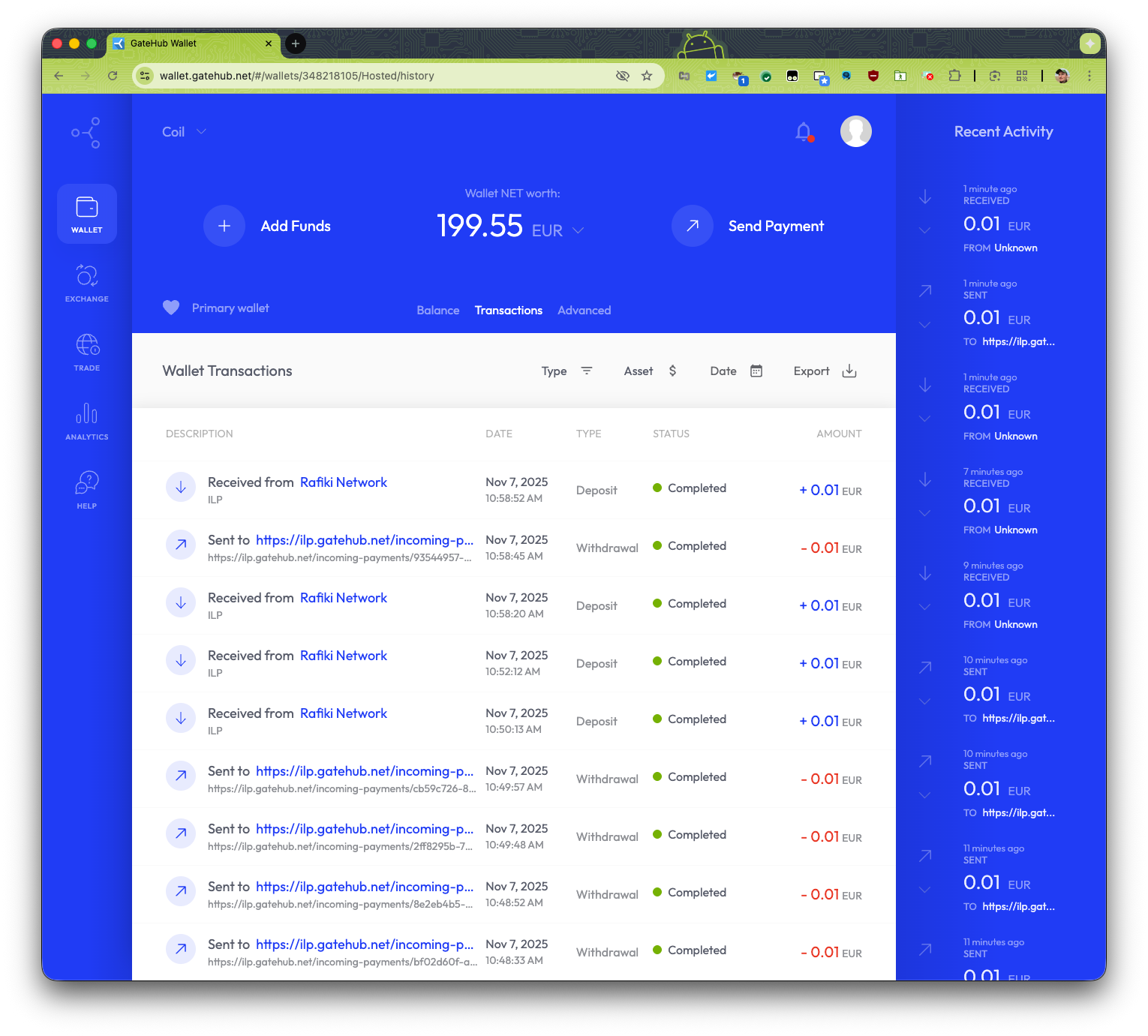
Then you're ready to receive payments. Here's me browsing my blog and seeing payments go out from and come in to my GateHub wallet. This is of course effectively a zero sum game, me paying myself. The 0.01 cent are the streamed payments that go out and then come in again. I tested a one-time payment as well. The 0.50 cents (not shown) was a successful one-time payment.

The GateHub wallet showing incoming and outgoing transactions.

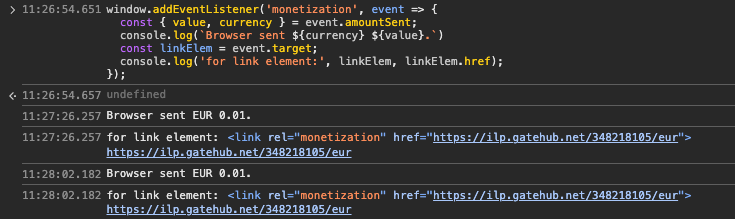
There's also a JavaScript API, so you can adjust the content of your page when your page notices that the user is paying.

window.addEventListener('monetization', (event) => {
  const { value, currency } = event.amountSent;
  console.log(`Browser sent ${currency} ${value}.`);
  const linkElem = event.target;
  console.log('for link element:', linkElem, linkElem.href);
});

For testing purposes, you can observe these monetization events in Chrome DevTools by pasting in the snippet above in the Console.

Chrome DevTools Console showing a  event.

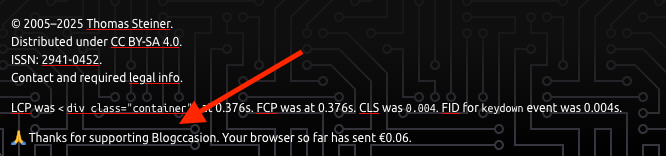
This way you could, for example, remove ads, or unlock an article when you notice a one-time payment. On my blog, I just show a "thank you" message for now.

Thank you message in the footer of my blog showing how much the user has paid.

I'm really bulli$h on this proposed standard. Hopefully someone else will try it and let me know how it goes. I truly and honestly believe that this could be the future for making the Web of tomorrow financially sustainable for publishers, big and small.

Thomas Steiner
This post appeared first on https://blog.tomayac.com/2025/11/07/using-the-web-monetization-api-for-fun-and-profit/.

Running Node.js in a Hugging Face Space

Like many developers, I was bummed when I learned about the shutdown of Glitch. While GitHub Pages works great for web apps that don't need a server, I struggled with finding a drop-in replacement for hosting server-based apps, and specifically apps using Node.js. Until I found out about Hugging Face Spaces and that it supports Docker, which allowed me to create an evergreen template for running Node.js in a Hugging Face Space.

Hugging Face ♥️ Node.js
  • If all you want is a quick way to fire up your own Space-hosted Node.js server, click Duplicate this Space.
  • If you want to know how the sausage is made or create your own template, read on.

Create a Hugging Face Space

This assumes that you have a (free or paid) account on Hugging Face. Go to your profile and create a new Hugging Face Space using Docker as the Space SDK. Go for the Blank Docker template. Leave all the other settings unchanged, so you end up on the free tier. Choose if your Space should be private or public.

An evergreen template

The objective is to make this template evergreen, so no concrete version numbers are hardwired. Instead, the idea is to hardwire the version numbers when you duplicate the template to create a permanent Space.

Create a package.json file

Next, create the package.json file that your template should use. Note that this uses "latest" as the Express.js version, as the template is meant to stay evergreen.

{
  "name": "nodejs-template",
  "version": "0.0.1",
  "description": "A template for running Node.js in a Hugging Face Space.",
  "keywords": ["Node", "Node.js", "Hugging Face Space"],
  "repository": {
    "type": "git",
    "url": "git@hf.co:spaces/tomayac/nodejs-template"
  },
  "license": "Apache-2.0",
  "author": "Thomas Steiner (tomac@google.com)",
  "type": "module",
  "main": "index.js",
  "scripts": {
    "start": "node index.js"
  },
  "dependencies": {
    "express": "latest"
  }
}

Create a Dockerfile

As the next step, create a Dockerfile for your template. Again I'm using an evergreen approach here with a Node.js Docker tag of lts-alpine, which means I always get the LTS release of Node.js running on the lightweight Alpine Linux.

# Node base image
FROM node:lts-alpine

# Switch to the "node" user
USER node

# Set home to the user's home directory
ENV HOME=/home/node PATH=/home/node/.local/bin:$PATH

# Set the working directory to the user's home directory
WORKDIR $HOME/app

# Moving file to user's home directory
ADD . $HOME/app

# Copy the current directory contents into the container at $HOME/app setting the owner to the user
COPY --chown=node . $HOME/app

# Loading Dependencies
RUN npm install

# Expose application's default port
EXPOSE 7860

# Entry Point
ENTRYPOINT ["nodejs", "./index.js"]

Create an index.js file

Up next, create your default index.js file that your template should use when the Node.js server starts. I went with the battle-proven Express.js server framework. Note that the port needs to be 7860.

Now for the smart part: The code dynamically reads out the used Express.js and Node.js version, so when you duplicate the template, you can hard-wire these versions. After duplicating the template, in your code, update the highlighted parts:

  • In your Dockerfile, replace node:lts-alpine with, for example, node:24-alpine.
  • In your package.json file, replace "express": "latest" with, for example, "express": "^5.1.0".
import express from 'express';

const app = express();
const port = 7860;

app.get('/', async (req, res) => {
  res.send(
    `Running Express.js ${
      (
        await import('express/package.json', {
          with: { type: 'json' },
        })
      ).default.version
    } on Node.js ${process.version.split('.')[0].replace('v', '')}`
  );
});

app.listen(port, () => {
  console.log(`Example app listening on port ${port}`);
});

Create a REAMDE.md file

To set some metadata for your template, create a README.md file with YAML front matter at the beginning. Hugging Face makes this easy via its Web interface for the standard parameters, but you can modify many more parameters as per the documentation.

---
license: apache-2.0
title: Node.js template
sdk: docker
emoji: 🐢
colorFrom: green
colorTo: green
short_description: A template for running Node.js in a Hugging Face Space
---

What's missing?

While you can edit files individually on Hugging Face's Space Files view with syntax highlighting and editing support, it's not a full-blown IDE, but you can clone your Space with git and work on it locally (or with an online IDE like VS Code).

git clone git@hf.co:spaces/tomayac/nodejs-template

See it live and bonus

And this is it really. Now you have a running Node.js app that you can duplicate whenever you need to spin up a Node.js server. The best is that this Space runs in its own main browser context, https://tomayac-nodejs-template.hf.space/ in the concrete case, not somewhere in an iframe, which means you can set headers like COOP or COEP to get access to powerful features like SharedArrayBuffer and friends. In fact, Hugging Face even allows you to set these custom_headers by default in the YAML front matter config at the beginning of the README.md. Note, though, that adding these headers means your app will only run in standalone mode, but no longer in the default Space iframed view.

custom_headers:
  cross-origin-embedder-policy: require-corp
  cross-origin-opener-policy: same-origin
  cross-origin-resource-policy: cross-origin

Happy hacking!

Thomas Steiner
This post appeared first on https://blog.tomayac.com/2025/11/03/running-nodejs-in-a-hugging-face-space/.

Prompt API color sensitivity

I was playing with stress-testing the multimodal capabilities of the Prompt API and thought a nice test case might be to have the model read the current time painted on a <canvas>. As with my last Prompt API exploration, I'm again using a response constraint, the HH:mm:ss regular expression /^([0-1][0-9]|2[0-3]):([0-5][0-9]):([0-5][0-9])$/. The prompt is "Read the time that you can see in this image and print it in HH:mm:ss format."

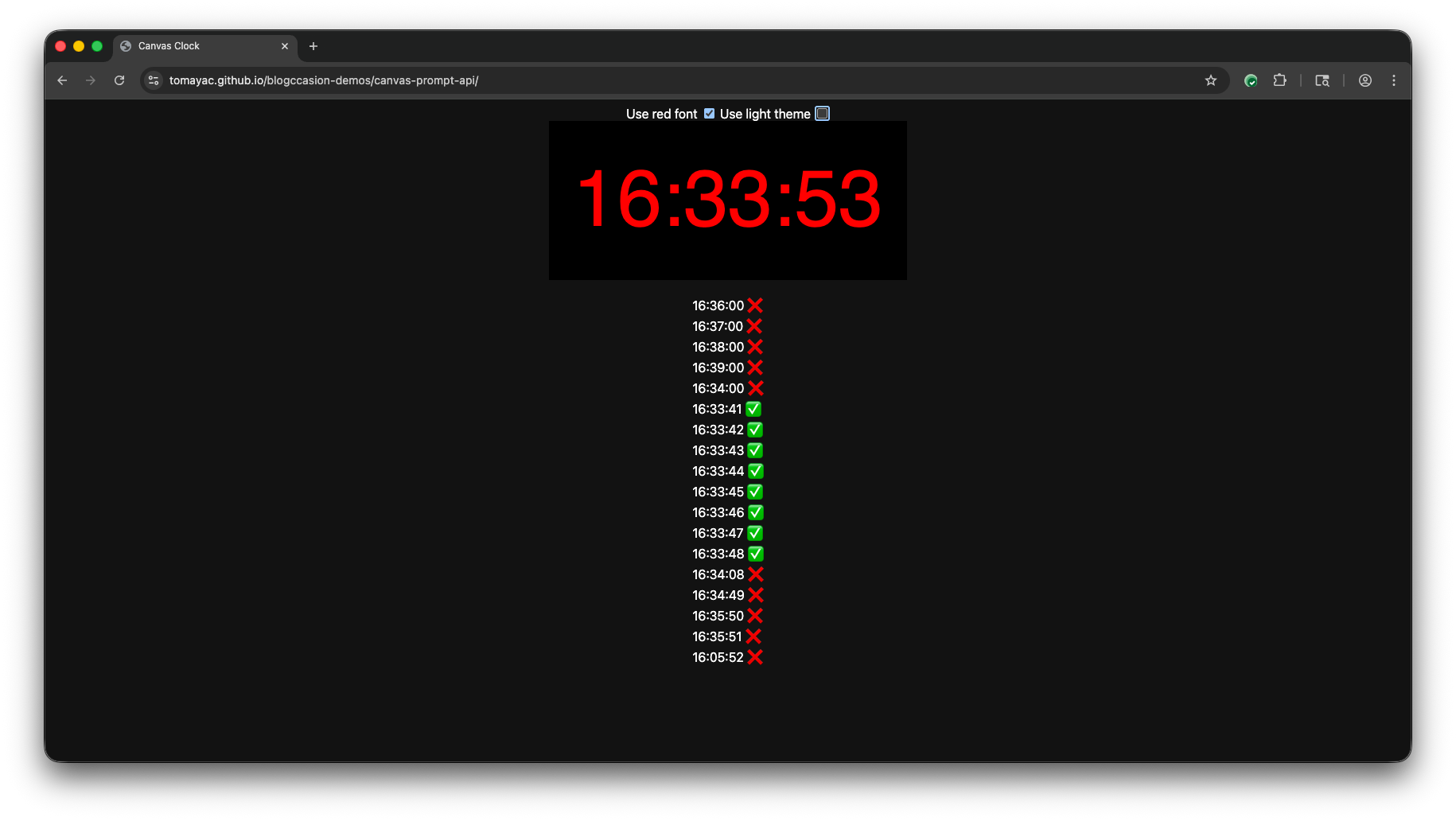
To my surprise, the model (Gemini Nano in Chrome) seems to be quite color-sensitive. I found that the model often gets the time wrong in dark mode when a red font is used to paint on the canvas. (The Canvas CSS system color is #121212 in Chrome in dark mode.) I checked the contrast between CSS #ff0000 (that is, red) and CSS #121212 (that is, black-ish) and it's 4.68:1, which for large text passes both WCAG AA and WCAG  AAA.

Not something really super actionable, other than maybe a heads up to play with color-preprocessing if the model's recognition performance is poorer than you expected.

Oh, and almost forgot the results of my stress test: on my MacBook Pro 16-inch, Nov 2024 with an Apple M4 Pro and 48 GB of RAM, the model was able to keep up with about one complete (but not necessarily correct) prompt response per second. (Yes, I know that this machine is not what the average user has.)

Test case showing the model gets the time wrong in dark mode when a red font is used to paint on the canvas.

You can play with the demo embedded below, or check out the source code on GitHub. Toggle between light mode and dark mode and choose red or CanvasText as the font color.

Thomas Steiner
This post appeared first on https://blog.tomayac.com/2025/09/16/prompt-api-color-sensitivity/.

For all that’s holy, can you just leverage the Web, please?

When I moved in with my wife Laura in 2005, we lived in a shared apartment in Barcelona that had an ancient washing machine that was just there already, no idea who initially bought it. I managed to break the washing machine door's closing mechanism some time in 2006, so for a few weeks, whenever we did the washing, we had to lean a chair against the door so it wouldn't open. At the time, we were both students and living on a small budget.

Eventually, later in the same year, we bought an Electrolux machine that has accompanied us ever since. First on our move to Hamburg, then there through three apartments, and finally back to Spain, where we live now in the Catalonian countryside. Anyway, the washing machine had a motor damage last week, so after almost 20 years, it was time for a new one. I ordered it online (another Electrolux, without Internet nor WiFi), it was delivered swiftly, and I installed it hopefully correctly.

Our new Electrolux washing machine.

The washing machine came with a voluntary 10 year warranty if you registered it. The brochure where this offer was announced featured a free telephone number and a QR code that pointed at the number (in plain text, not making use of the tel: protocol). I called the number, and to my absolute surprise there were currently more callers than usual. After about 20 minutes, I had an agent on the phone, but after saying what I wanted, they just hung up on me (or the connection cut, whatever). Fine, I called again, but now, the call center was over capacity and they didn't even let me enter in the wait loop.

They did offer to send me a link to a chat service on their website via SMS, though, so I went for that option. The SMS literally pointed me at something like https://www. broken up by a space and then example.com/gc/. When I clicked the linkified example.com/gc/, I ended up on a broken site whose certificate wasn't trusted. After fixing the link manually and prepending the https://www. part, the page didn't load.

At this point I was close to giving up, but I had one last card that I wanted to play: I searched Google for "electrolux warranty register", and it pointed me at a site https://www.example.com/mypages/register-a-product/ as the first result. This looked promising. The mypages already suggested that this was gated behind a login, so I created an account, which was painless. (Turns out, after having an account and being logged in, the chat URL also worked—what an oversight on their part.) On the page, they had a field where you could enter the washing machine's product number from the identification plate on the door of the washing machine, together with helpful information where to find the data.
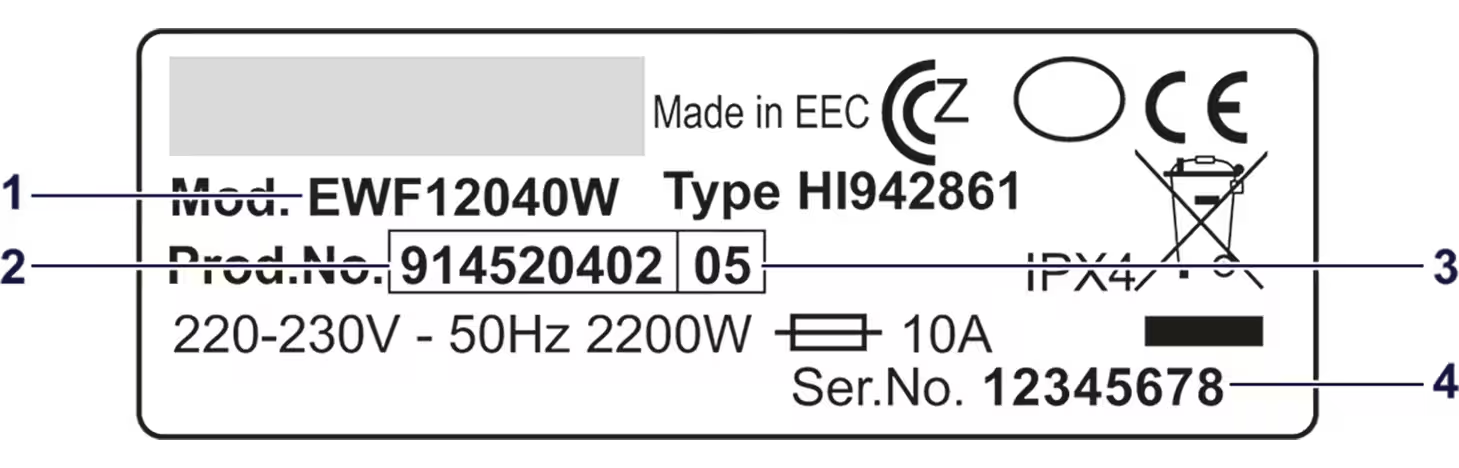
Annotated Electrolux identification plate.

But even better, they offered a service where you could just upload a picture of the identification plate, and some AI on their server then extracted the product number and let you register the product with two clicks. What a fantastic experience compared to the crappy (and likely for the operator way more expensive) call center experience.
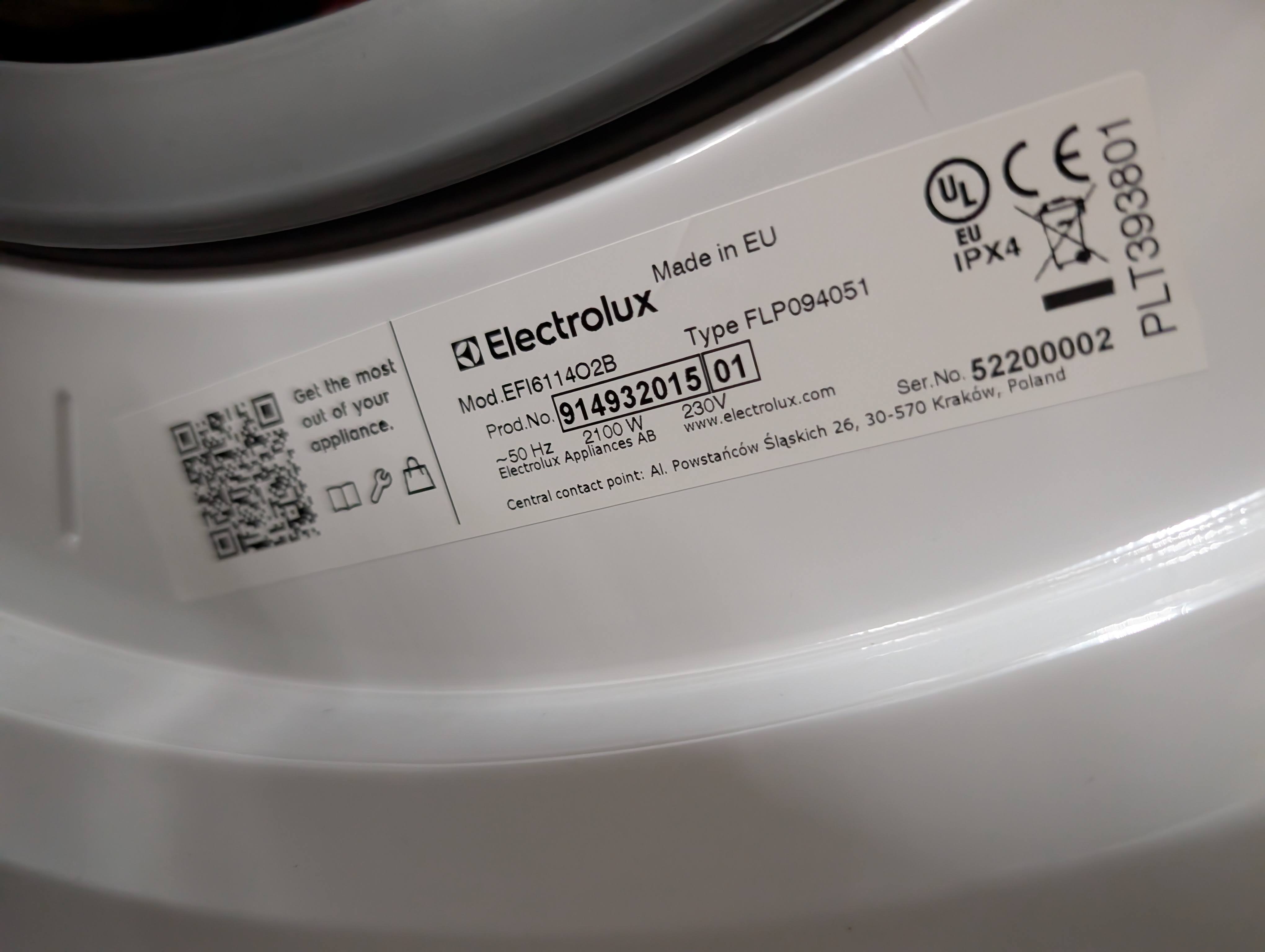
Electrolux identification plate cell phone photo.

Why they didn't just put this URL on the brochure and the QR code is beyond me. As the title suggests: For all that's holy, can you just leverage the Web, please? Don't make me talk to people! They could still offer to register the machine by telephone as an alternative, but in 2025, the default for such things should just be the Web.

Bonus

Since I work on built-in AI as my day job in the Chrome team at Google, I could not not notice this "extract the product number from this identification plate" use case for client-side AI. I coded up a quick demo using the Prompt API embedded below that shows this in action. Here's a quick walkthrough of the code:

  1. Create a session with the LanguageModel, informing the user of download progress if the model needs to be downloaded, and telling the model about the to-be-expected inputs (English texts and images) and outputs (English texts). In the system prompt, I tell the model what its overall task is (identify product numbers from photos of identification plates).
  2. Prompt the model using the promptStreaming() method with a multimodal prompt, one textual and one image. The Prompt API supports structured output in the form of a JSON Schema or regular expression. Product numbers have nine digits, so I pass the regular expression /\d{9}/ as the responseConstraint option.
  3. Iterate over the chunks of the response. Since I'm just expecting nine digits, this is probably a bit overkill, but, hey…
  4. (Not shown) On the server, verify that the recognized product number actually exist. Companies typically have some sort of verification rules like checksums, or washing machine product numbers always start with 91 or something. If you know those rules, you can of course make them part of the responseConstraint, but you always need to verify untrusted user input (which the output of an LLM counts as) on the server.
const session = await LanguageModel.create({
  monitor(m) {
    m.addEventListener('downloadprogress', (e) => {
      console.log(`Downloaded ${e.loaded * 100}%.`);
    });
  },
  expectedInputs: [{ type: 'text', languages: ['en'] }, { type: 'image' }],
  expectedOutputs: [{ type: 'text', languages: ['en'] }],
  initialPrompts: [
    {
      role: 'system',
      content:
        'Your task is to identify product numbers from photos of identification plates.',
    },
  ],
});

const stream = session.promptStreaming(
  [
    {
      role: 'user',
      content: [
        {
          type: 'text',
          value:
            'Extract the product number from this identification plate. It has nine digits and appears after the text "Prod.No.".',
        },
        { type: 'image', value: image },
      ],
    },
  ],
  {
    responseConstraint: /\d{9}/,
  }
);

for await (const chunk of stream) {
  console.log(chunk);
}

Thomas Steiner
This post appeared first on https://blog.tomayac.com/2025/09/03/for-all-thats-holy-can-you-just-leverage-the-web-please/.


What a diff’rence a semicolon makes

The other day, I was hit by a baffling TypeError: console.log(...) is not a function. Like, WTF 🤔? Turns out, I was sloppily adding a quick console.log('here') statement for debugging purposes (as one does 🙈), which happened to be right before an IIFE. I didn't put a ;, as it was a throwaway statement I'd remove after finding the bug, but turns out that's the issue. StackOverflow contributor Sebastian Simon had the explanation:

It's trying to pass function(){} as an argument to the return value of console.log() which itself is not a function but actually undefined (check typeof console.log();). This is because JavaScript interprets this as console.log()(function(){}). console.log however is a function.

Minimal repro:

console.log()
(function(){})

Andre on Mastodon reminded me of Chris Coyier's excellent Web Development Merit Badges, so I'm now proudly wearing mine: "Debugged something for over one hour where the fix was literally one character":

Debugged something for over one hour where the fix was literally one character

Thomas Steiner
This post appeared first on https://blog.tomayac.com/2025/07/26/what-a-difference-a-semicolon-makes/.

Setting the COOP and COEP headers on static hosting like GitHub Pages

Remember the Cross-Origin-Embedder-Policy (COEP) and the Cross-Origin-Opener-Policy (COOP) headers for making your site cross-origin isolated? If not, here's my colleague Eiji Kitamura's article Making your website "cross-origin isolated" using COOP and COEP . To be effective, they need to be sent as in the example below.

cross-origin-embedder-policy: credentialless
cross-origin-opener-policy: same-origin

Cross-origin isolated documents operate with fewer restrictions when using the following APIs:

SharedArrayBuffer can be created and sent via a Window.postMessage() or a MessagePort.postMessage() call. Performance.now() offers better precision. Performance.measureUserAgentSpecificMemory() can be called.

Typically, sending non-default HTTP headers like COOP and COEP means controlling the server so you can configure it to send them. I recently learned that they are also honored if set through a service worker 🤯! This means you can make apps on static hosting like on GitHub Pages cross-origin isolated!

One example where cross-origin isolating your site is needed is with SQLite Wasm when you want to use persistent storage with the origin private file system virtual file system called OPFS sqlite3_vfs. I'm glad to have this coi-serviceworker trick up my sleeve now, and you do, too!

Thomas Steiner
This post appeared first on https://blog.tomayac.com/2025/03/08/setting-coop-coep-headers-on-static-hosting-like-github-pages/.

Playing with AI inference in Firefox Web extensions

Recently, in a blog post titled Running inference in web extensions, Mozilla announced a pretty interesting experiment on their blog:

We've recently shipped a new component inside of Firefox that leverages Transformers.js […] and the underlying ONNX runtime engine. This component lets you run any machine learning model that is compatible with Transformers.js in the browser, with no server-side calls beyond the initial download of the models. This means Firefox can run everything on your device and avoid sending your data to third parties.

They expose this component to Web extensions under the browser.trial.ml namespace. Where it gets really juicy is at the detail how models are stored (emphasis mine):

Model files are stored using IndexedDB and shared across origins

Typically when you develop an app with Transformers.js, the model needs to be cached for each origin separately, so if two apps on different origins end up using the same model, the model needs to be downloaded and stored redundantly. (Together with Chris and François, I have thought about this problem, too, but that's not the topic of this blog post.)

To get a feeling for the platform, I extracted their example extension from the Firefox source tree and put it separately in a GitHub repository, so you can more easily test it on your own.

  1. Make sure that the following flags are toggled to true on the special about:config page:

    browser.ml.enable
    extensions.ml.enabled
  2. Check out the source code.

    git clone git@github.com:tomayac/firefox-ml-extension.git
  3. Load the extension as a temporary extension on the This Nightly tab of the special about:debugging page. It's important to actually use Firefox Nightly.

    Special about:debugging page in Firefox Nightly.

  4. After loading the extension, you're brought to the welcome page, where you need to grant the ML permission. The permission reads "Example extension requests additional permissions. It wants to: Download and run AI models on your device". In the manifest.json, it looks like this:

    {
      "optional_permissions": ["trialML"]
    }

    Permission dialog that reads "Example extension requests additional permissions. It wants to: Download and run AI models on your device

  5. After granting permission, right-click any image on a page, for example, Unsplash. In the context menu, select ✨ Generate Alt Text.

    Context menu with the "✨ Generate Alt Text" option.

  6. If this was the first time, this triggers the download of the model. On the JavaScript code side, this is the relevant part:

    // Initialize the event listener
    browser.trial.ml.onProgress.addListener((progressData) => {
      console.log(progressData);
    });
    
    // Create the inference engine. This may trigger model downloads.
    await browser.trial.ml.createEngine({
      modelHub: 'mozilla',
      taskName: 'image-to-text',
    });

    You can see the extension display download progress in the lower left corner.

    Model download progress as an injected overlay on the Unsplash homepage.

  7. Once the model download is complete, the inference engine is ready to run.

    // Call the engine.
    const res = await browser.trial.ml.runEngine({
      args: [imageUrl],
    });
    console.log(res[0].generated_text);

    It's not the most detailed description, but "A computer desk with a monitor, keyboard, and a plant" definitely isn't wrong.

    Injected overlay with an accurate image description on the Unsplash homepage.

    If you click Inspect on the extension debugging page, you can play with the WebExtensions AI APIs directly.

    Special about:debugging page with the Inspect button highlighted.

  8. The browser.trial.ml namespace exposes the following functions:

    • createEngine(): creates an inference engine.
    • runEngine(): runs an inference engine.
    • onProgress(): listener for engine events
    • deleteCachedModels(): delete model(s) files

    Firefox DevTools window shown inspecting the  namespace.

    I played with various tasks, and initially, I had some trouble getting translation to run, so I hopped on the firefox-ai channel on the Mozilla AI Discord, where Tarek Ziade from the Firefox team helped me out and also pointed me at about:inference, another cool special page in Firefox Nightly where you can manage the installed AI models. If you want to delete models from JavaScript, it seems like it's all or nothing, as the deleteCachedModels() function doesn't seem to take an argument. (It also threw a DOMException when I tried to run it on Firefox Nightly 137.0a1.)

    // Delete all AI models.
    await browser.trial.ml.deleteCachedModels();

    Inference manager on about:inference special page with overview of downloaded models.

  9. The about:inference page also lets you play directly with many AI tasks supported by Transformers.js and hence Firefox WebExtensions AI APIs.

    Inference manager on about:inference special page with options to test the available models.

Concluding, I think this is a very interesting way of working with AI inference in the browser. The obvious downside is that you need to convince your users to download an extension, but the obvious upside is that you possibly can save them from having to download a model they may already have downloaded and stored on their disk. When you experiment with AI models a bit, disk space can definitely become a problem, especially on smaller SSDs, which led me to a fun random discovery the other day, when I was trying to free up some disk space for Gemini Nano…

As teased before, Chris, François, and I have some ideas around cross-origin storage in general, but the Firefox WebExtensions AI APIs definitely solve the problem for AI models. Be sure to read their documentation and play with their demo extension! On the Chrome team, we're experimenting with built-in AI APIs in Chrome. It's a very exciting space for sure! Special thanks again to Tarek Ziade on the Mozilla AI Discord for his help in getting me started.

Thomas Steiner
This post appeared first on https://blog.tomayac.com/2025/02/07/playing-with-ai-inference-in-firefox-web-extensions/.

Testing browser-use, a scriptable AI browser agent

I'm not a big LinkedIn user, but the other day, my Google colleague Franziska Hinkelmann posted something about a project called browser-use that caught my eye:

Got low stakes repetitive tasks in the browser? Playwright + LLMs (Gemini 2.0) to the rescue! Super easy to make somebody else cough agents cough do the work for you, especially if you have to repeat a task for many rows in a Google Sheet.

After seeing her demo, I went and tried it out myself. Here are the steps that worked for me on macOS:

  1. Install uv following their installation instructions. (The usual caveat of first checking the source code before pasting anything in the Terminal applies.)

    curl -LsSf https://astral.sh/uv/install.sh | less
  2. Create a new Python environment and activate it. This is from browser-use's quickstart instructions.

    uv venv --python 3.11
    source .venv/bin/activate
  3. Install the dependencies and Playwright.

    uv pip install browser-use
    playwright install
  4. Create a .env file and add your OpenAI API key in the form OPENAI_API_KEY=abc123.

  5. Create an agent.py file with the source code of your agent. Here's the one I tried. As you can see, I'm tasking the agent with the following job: "Go to developer.chrome.com and find out what built-in AI APIs Chrome supports".

    from langchain_openai import ChatOpenAI
    from browser_use import Agent
    import asyncio
    from dotenv import load_dotenv
    load_dotenv()
    
    async def main():
        agent = Agent(
            task="Go to developer.chrome.com and find out what built-in AI APIs Chrome supports.",
            llm=ChatOpenAI(model="gpt-4o"),
        )
        result = await agent.run()
        print(result)
    
    asyncio.run(main())

The coolest thing is that you can watch the agent do its job in real time and see the reasoning steps in the command line.

Headless browser window with all UI elements annotated.

Here's an excerpt of the logs.

INFO     [agent] 🚀 Starting task: Go to developer.chrome.com and find out what built-in AI APIs Chrome supports.
INFO     [agent] 📍 Step 1
INFO     [agent] 🤷 Eval: Unknown - It's the starting state.
INFO     [agent] 🧠 Memory: Start searching for built-in AI APIs supported by Chrome on developer.chrome.com.
INFO     [agent] 🎯 Next goal: Navigate to developer.chrome.com
INFO     [agent] 🛠️  Action 1/1: {"go_to_url":{"url":"https://developer.chrome.com"}}
INFO     [controller] 🔗  Navigated to https://developer.chrome.com
INFO     [agent] 📍 Step 2
INFO     [agent] 👍 Eval: Success - Navigated to the correct URL.
INFO     [agent] 🧠 Memory: Visited developer.chrome.com. Need to search for information on built-in AI APIs supported by Chrome.
INFO     [agent] 🎯 Next goal: Use search input to find information on AI APIs.
INFO     [agent] 🛠️  Action 1/1: {"click_element":{"index":9}}
INFO     [controller] 🖱️  Clicked button with index 9:
INFO     [agent] 📍 Step 3
INFO     [agent] 👍 Eval: Success - The search bar was clicked but no input was entered yet.
INFO     [agent] 🧠 Memory: Need to input search query about AI APIs in Chrome using the search bar.
INFO     [agent] 🎯 Next goal: Enter 'AI APIs' in the search input to find relevant information.
INFO     [agent] 🛠️  Action 1/1: {"input_text":{"index":4,"text":"AI APIs"}}
INFO     [controller] ⌨️  Input AI APIs into index 4
[]

At the end of the log messages is the agent's full response to your task, formatted in Markdown. FWIW, the answer is exactly correct:

Chrome supports several built-in AI APIs, including:

  1. Translator API - Available in origin trial for early preview participants. Use cases include on-demand translation and supporting multi-language communication.
  2. Language Detector API - Available in Chrome origin trial. It helps detect languages without user input and can label texts for better screen reader pronunciation.
  3. Summarizer API - Allows for local experimentation to preview program participants. It can summarize meeting transcripts, articles, and forum questions.
  4. Writer and Rewriter APIs - Experimental status in early preview program, used for creating and refining text content.
  5. Prompt API - Allows natural language requests to Gemini Nano in Chrome, in an experimental early stage.

Visit developer.chrome.com for complete details and participation in early trials.

It's pretty wild what this scriptable agent is capable of doing today. Be sure to check out some of the other demos and also try the browser-use web-ui, which adds a nice UI on top.

Thomas Steiner
This post appeared first on https://blog.tomayac.com/2025/02/05/testing-browser-use-a-scriptable-ai-browser-agent/.