Guest blog post on Cross-Origin Storage in Transformers.js

I'm very excited to share a guest post I wrote for the Hugging Face 🤗 blog! The post is called 👉 Experimenting with the proposed Cross-Origin Storage API in Transformers.js 👈! This proposed new browser API, navigator.crossOriginStorage.requestFileHandle(hash), has the potential of revolutionizing the Web, a little bit at least. Learn more by reading the Explainer for the Cross-Origin Storage (COS) API.

And Transformers.js aren't alone with experimenting with this, they're joined by WebLLM (docs), wllama (code), Flutter (code), and Emscripten (docs).

In a nutshell, this is the usual flow of using the API:

const hash = {
  algorithm: 'SHA-256',
  value: '8f434346648f6b96df89dda901c5176b10a6d83961dd3c1ac88b59b2dc327aa4',
};

try {
  const handle = await navigator.crossOriginStorage.requestFileHandle(hash);
  // Cache hit! Get the file as a Blob and use it directly.
  const fileBlob = await handle.getFile();
} catch {
  // Cache miss. Download from network, then store for next time.
  const fileBlob = await fetch('https://cdn.jsdelivr.net/.../ort-wasm-simd-threaded.asyncify.wasm')
    .then(r => r.blob());
  const handle = await navigator.crossOriginStorage.requestFileHandle(
    hash,
    { create: true, origins: '*' },
  );
  const writableStream = await handle.createWritable();
  await writableStream.write(fileBlob);
  await writableStream.close();  
}

The Cross-Origin Storage API logo: a stylized walking person, as typically encountered on crosswalk signs.

Thomas Steiner
This post appeared first on https://blog.tomayac.com/2026/06/24/guest-blog-post-on-cross-origin-storage-in-transformersjs/.

Your MP3s from Google Drive in Music Assistant on Home Assistant

Like most millennials, I grew up with Napster, then Kazaa, then eDonkey2000, obviously CD rips, and of course LAN parties. Over the years, this has led to a large collection of completely legal MP3 files that I have backed up on two large external USB spinning disks that haven't spun for a long time now, but the files also exist on Google Drive.

I'm also heavily invested in the Home Assistant ecosystem, which lets you install a full-featured music player app called Music Assistant.

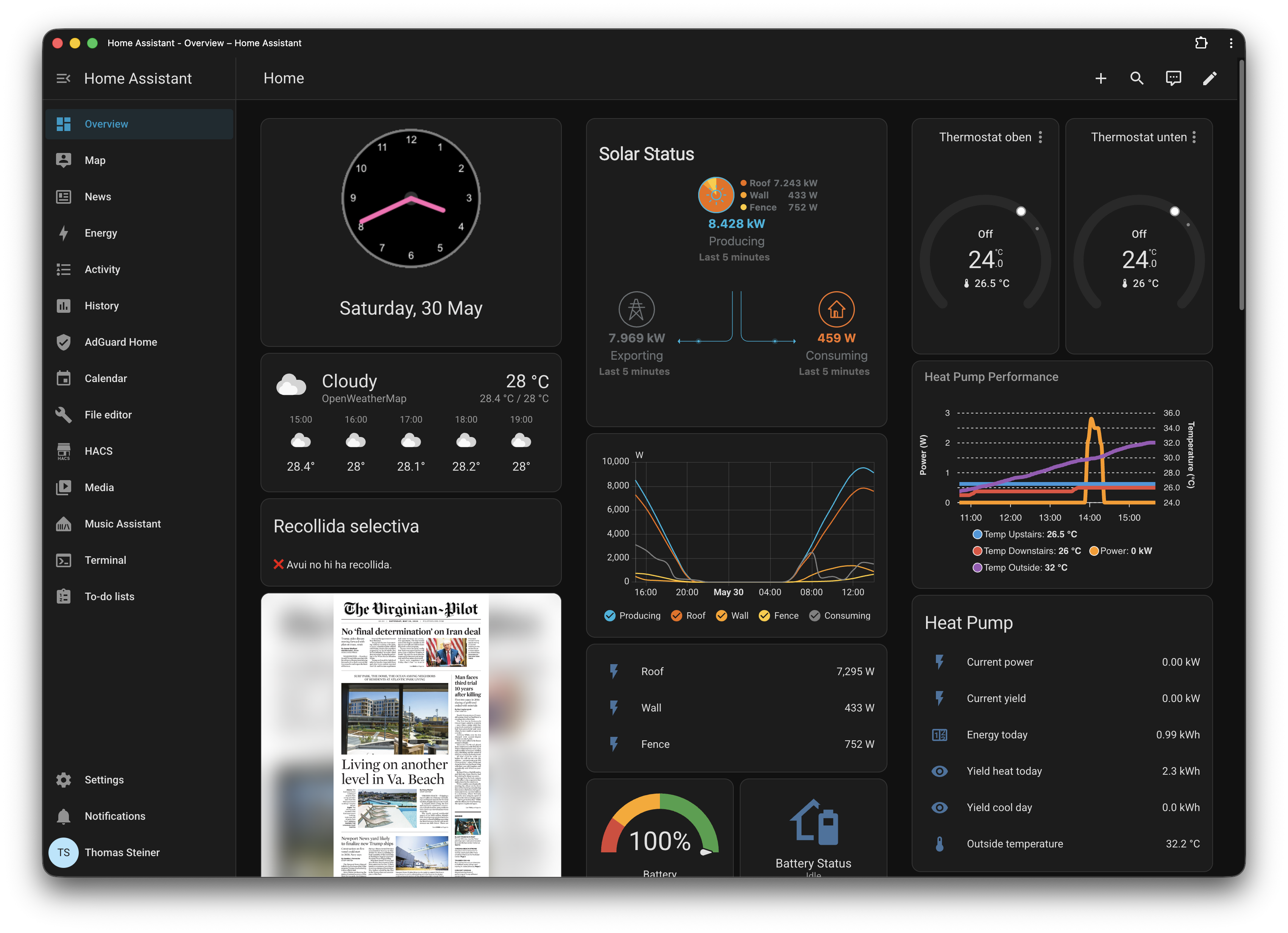
My Home Assistant dashboard.

These days, of course I pay for my music (we have the YouTube Music family plan), but I recently thought it'd be fun to revive my old MP3 collection. This blog post describes how to connect Google Drive to Music Assistant on Home Assistant.

Create a rclone configuration for Google Drive

The first step is running rclone, a command-line program to manage files on cloud storage. Among many other providers, it supports Google Drive. Download rclone to your regular computer (that is, very likely, not your Home Assistant), and then follow the instructions to configure rclone for Google Drive. This requires you to go through the hell that is Google's Cloud Console, but it's a one-time setup. All you need in the end is a configuration file that you then have to copy over to your Home Assistant. Essentially, you run the configuration wizard, show the configuration file, and then copy its contents.

rclone config
rclone config show

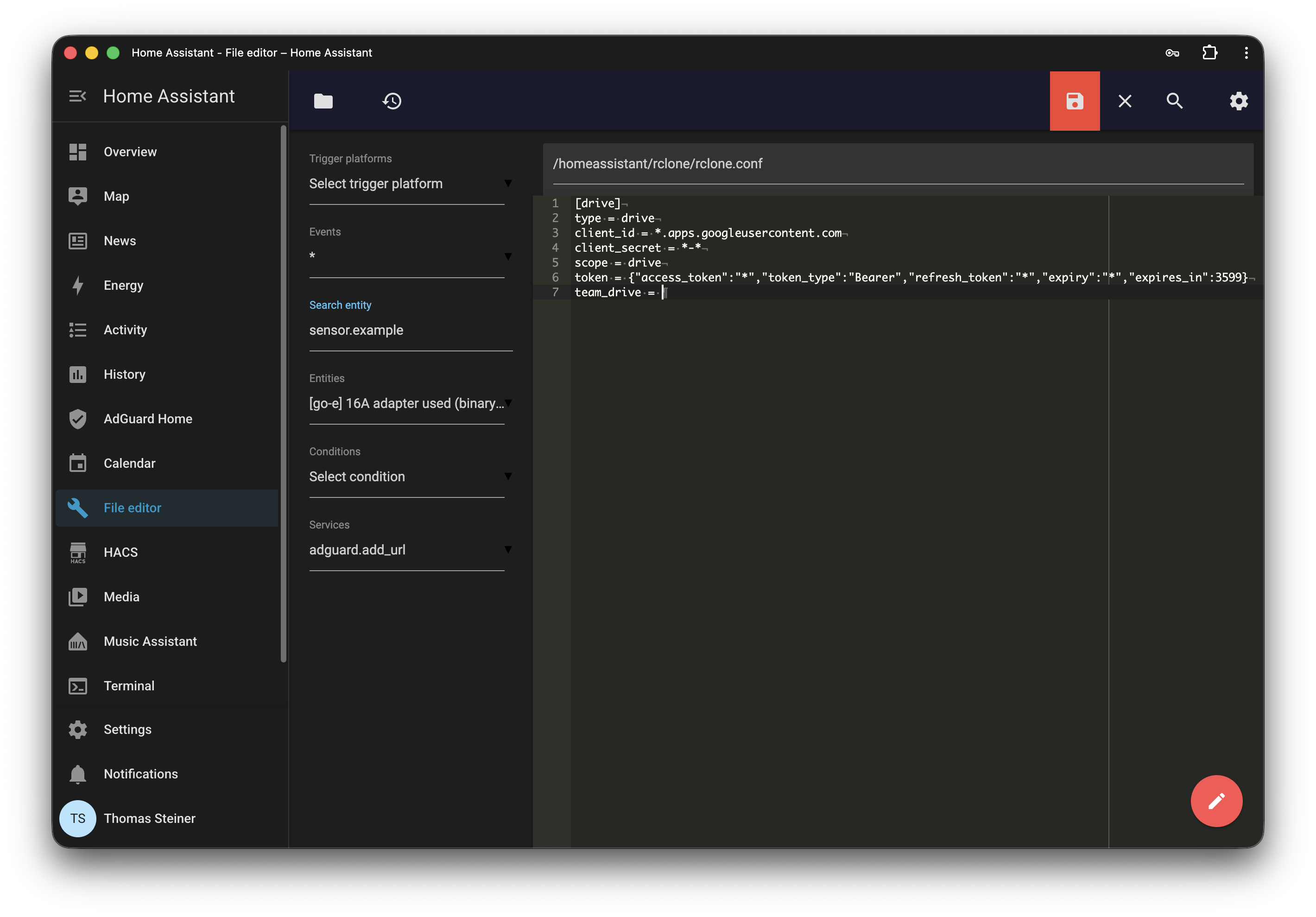
It should look something like the following snippet, but of course with your own client ID, client secret, and token:

[drive]
type = drive
client_id = *.apps.googleusercontent.com
client_secret = *-*
scope = drive
token = {"access_token":"*","token_type":"Bearer","refresh_token":"*","expiry":"*","expires_in":3599}
team_drive = 

In Home Assistant, use the File editor addon (app) and create a file called rclone.conf in the config/rclone directory. Paste the contents of your rclone configuration file into it and save it.

The rclone configuration file in the Home Assistant File editor.

Set up rclone in Home Assistant

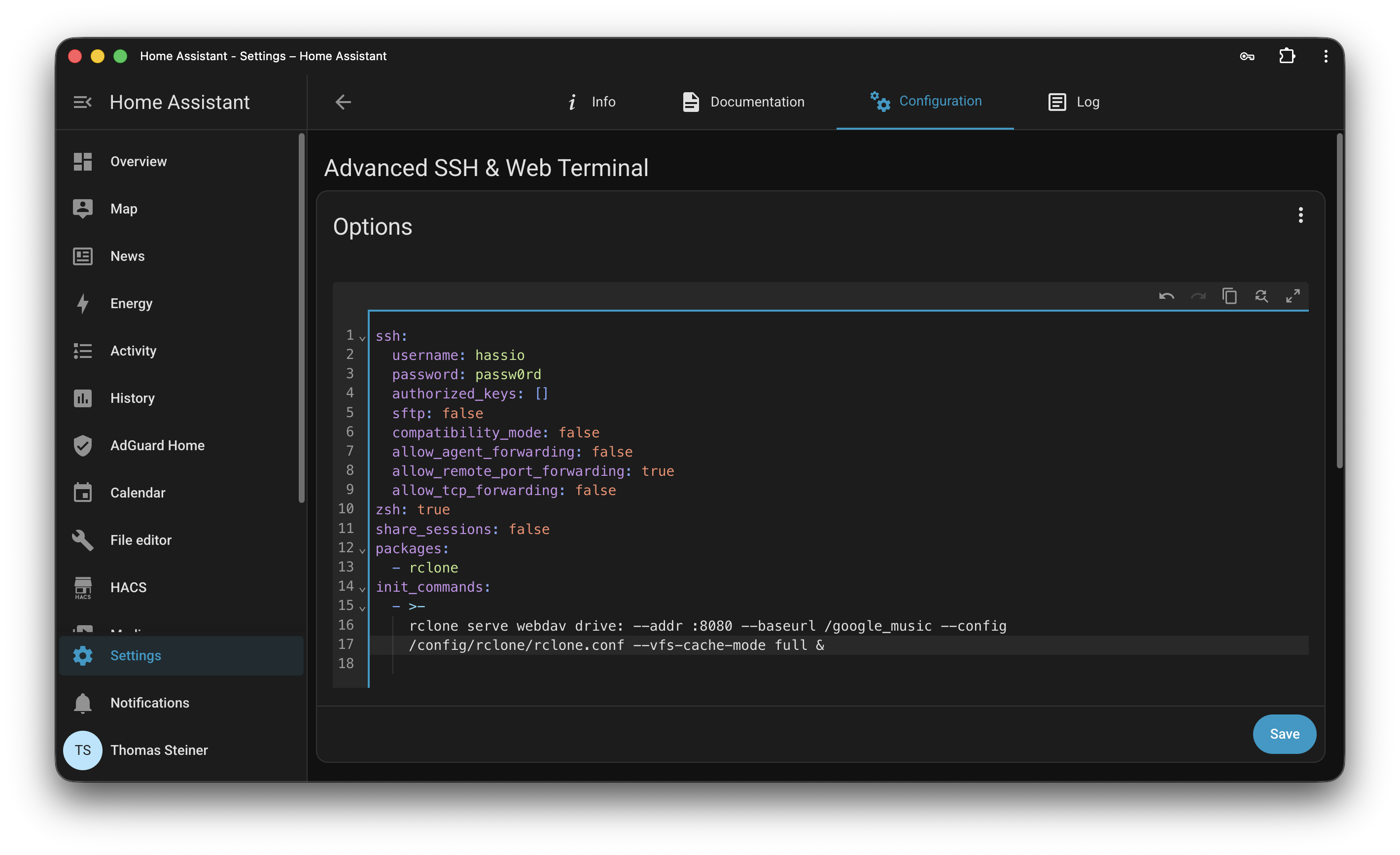
Now that you have the rclone configuration file in place, you need to set up rclone to serve your Google Drive as a WebDAV server. Install the Advanced SSH & Web Terminal app in Home Assistant. Open its Configuration tab and where it says Options, click the three dot menu and select Edit in YAML. Add the following configuration to it, which will install rclone and then start a WebDAV server on port 8080 that serves your Google Drive. This will be run automatically each time you start Home Assistant.

ssh:
  username: hassio
  password: passw0rd # ⚠️ Change this to your own password!
  authorized_keys: []
  sftp: false
  compatibility_mode: false
  allow_agent_forwarding: false
  allow_remote_port_forwarding: true
  allow_tcp_forwarding: false
zsh: true
share_sessions: false
packages:
  - rclone
init_commands:
  - >-
    rclone serve webdav drive: --addr :8080 --baseurl /google_music --config
    /config/rclone/rclone.conf --vfs-cache-mode full &

The Advanced SSH & Web Terminal configuration in Home Assistant.

Connect Music Assistant to the rclone WebDAV server

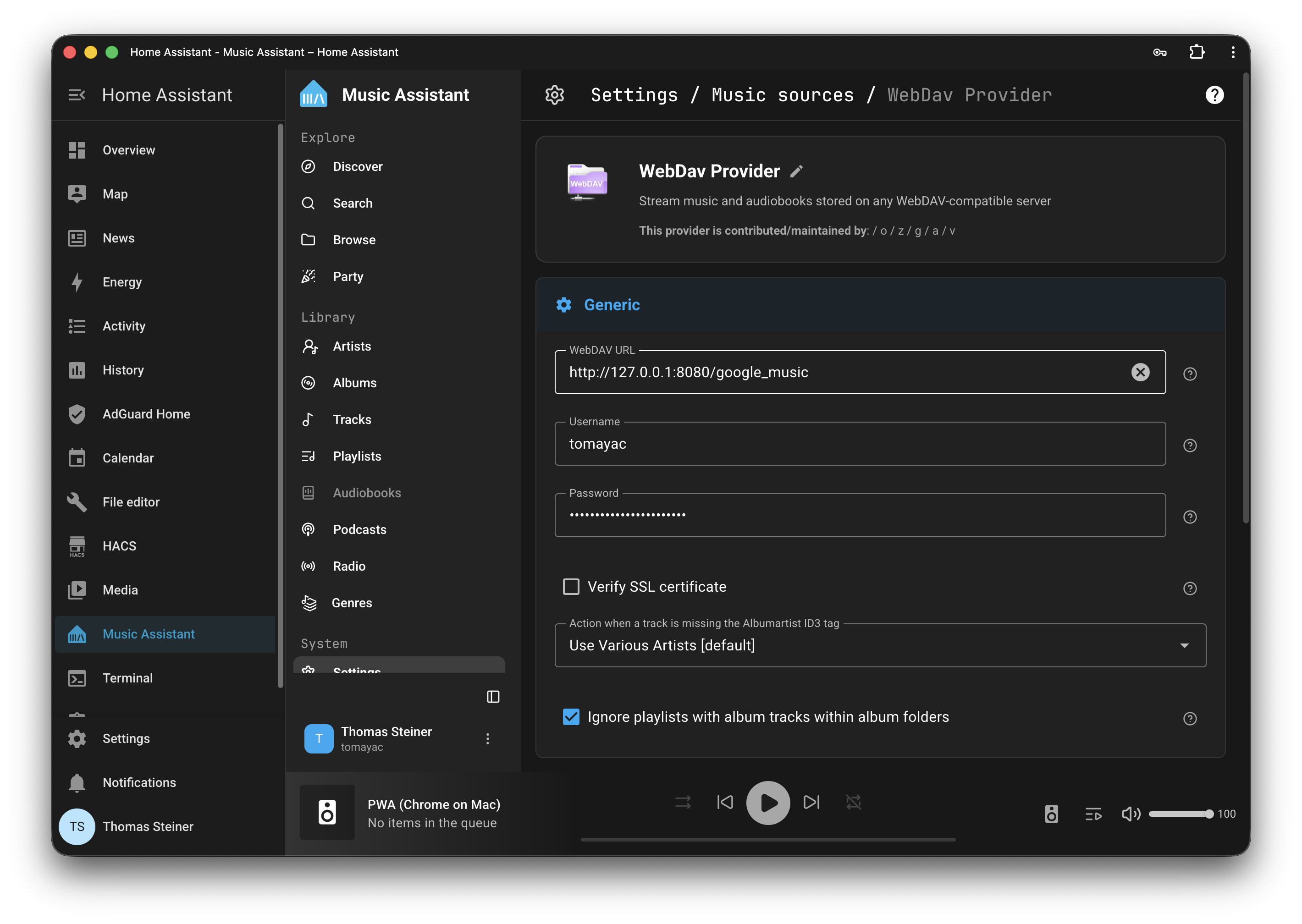
Finally, all you need to do is install Music Assistant and connect it to the WebDAV server that rclone is running. In Home Assistant, open the Music Assistant app and go to the Settings section. Click the Music sources button to add a new integration, and select WebDAV Provider from the list. Add http://127.0.0.1:8080/google_music as the WebDAV URL, and enter your username and password.

Adding a WebDAV music source in Music Assistant

Press play

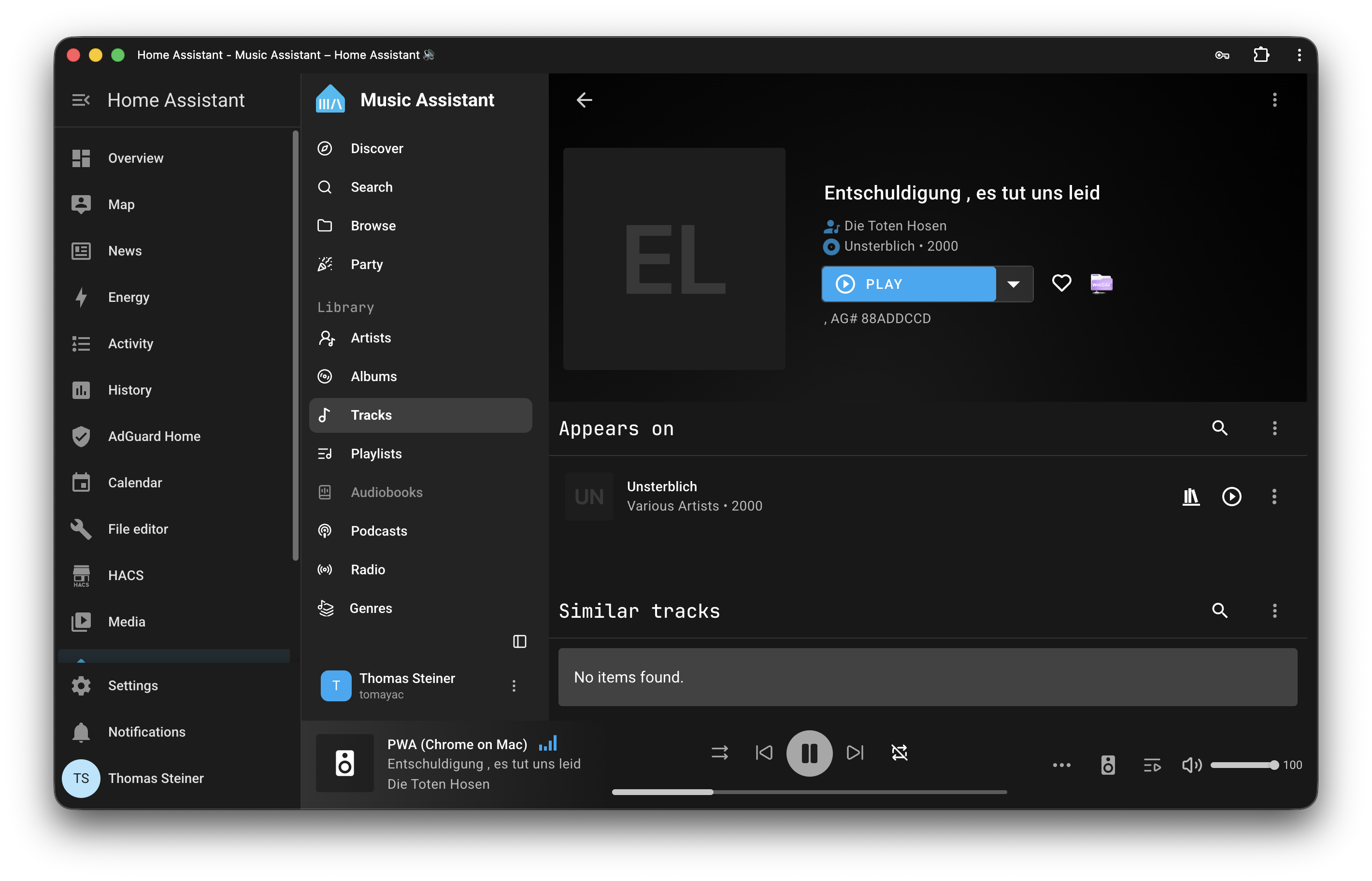
If all went well, you should now see your Google Drive music collection in Music Assistant and can browse it. Some will be embarrassing, some will have aged poorly, and some will bring back fond memories and be timeless. Enjoy the nostalgia!

A song playing in Music Assistant.

A personal note

If you like this blog post, please consider sharing it. Let's keep personal blogging alive! This post was hand-written by me with love and a cup of coffee, weird non-native English and all, hitting Esc a thousand times to keep the AI assistance away. If the post helped you, I always appreciate it if you let me know.

Thomas Steiner
This post appeared first on https://blog.tomayac.com/2026/05/30/your-mp3s-from-google-drive-in-music-assistant-on-home-assistant/.

What a diff’rence a semicolon makes

The other day, I was hit by a baffling TypeError: console.log(...) is not a function. Like, WTF 🤔? Turns out, I was sloppily adding a quick console.log('here') statement for debugging purposes (as one does 🙈), which happened to be right before an IIFE. I didn't put a ;, as it was a throwaway statement I'd remove after finding the bug, but turns out that's the issue. StackOverflow contributor Sebastian Simon had the explanation:

It's trying to pass function(){} as an argument to the return value of console.log() which itself is not a function but actually undefined (check typeof console.log();). This is because JavaScript interprets this as console.log()(function(){}). console.log however is a function.

Minimal repro:

console.log()
(function(){})

Andre on Mastodon reminded me of Chris Coyier's excellent Web Development Merit Badges, so I'm now proudly wearing mine: "Debugged something for over one hour where the fix was literally one character":

Debugged something for over one hour where the fix was literally one character

Thomas Steiner
This post appeared first on https://blog.tomayac.com/2025/07/26/what-a-difference-a-semicolon-makes/.

My response to the UK Competition and Markets Authority

The Open Web Advocacy (OWA) initiative in their recent blog post Apple adopts 6 of OWA's Choice Architecture Recommendations highlighted the six recommendations that Apple has adopted from the group's recommendations to comply with the EU's Digital Markets Act in relation to browser defaults and choice screens.

In parallel, the UK Competition and Markets Authority (CMA) launched a Market Investigation Reference into mobile browsers and cloud gaming and have recently published their list of remedies. While a great step in the right direction, the OWA aren't completely happy with the list. As a Web developer who addresses people across all platforms and regions, including iOS/macOS users in the UK, I followed the OWA's pledge and sent the following email to the CMA. I am sharing it here for transparency and encourage you to contact them, too, if you're concerned about the future of the Web.


MIME-Version: 1.0
Date: Thu, 22 Aug 2024 00:21:47 +0200
Message-ID: 
Subject: Thoughts on the CMA's list of remedies
From: Thomas Steiner 
To: browsersandcloud@cma.gov.uk
Cc: Thomas Steiner 

Dear CMA,

First, a disclosure: I work for Google's Chrome team (tomac@google.com), but in this email, I fully speak as the private Web developer that I am in my non-work life (I run, for example, SVGcode or WasmOptim). Wholehearted congratulations on the remedies that you have listed in your document; they are a great step in the right direction. I would like to encourage you to consider two more aspects, though:

If a browser vendor can bring their own browser engine to the operating system, there should be a guarantee that said browser engine would also run a Web app after it's installed. As you can see if you run How Fugu is My Browser on different browsers, there's a huge difference between the platforms. If we imagine a full Chrome on iOS based on the Blink engine with a set of supported APIs similar to Chrome on Android, apps relying on these APIs will break if they're only available in a Chrome tab, but not after installation in a non-Blink Safari version.

Furthermore, installation on iOS in particular, but also macOS Safari, is really a challenge for discovery. While native apps can show banners in webpages so users can install the app, the Web has no way of doing so on Apple platforms. It would be fantastic if there were some legally required way for Web browsers to expose the feature of app installation in a programmatically triggerable way. The in-progress Web Install API is a good step toward this goal.

Happy to answer any questions you have.

Cheers,
Tom

Thomas Steiner
This post appeared first on https://blog.tomayac.com/2024/08/26/my-response-to-the-cma/.