Playing with AI inference in Firefox Web extensions

Recently, in a blog post titled Running inference in web extensions, Mozilla announced a pretty interesting experiment on their blog:

We've recently shipped a new component inside of Firefox that leverages Transformers.js […] and the underlying ONNX runtime engine. This component lets you run any machine learning model that is compatible with Transformers.js in the browser, with no server-side calls beyond the initial download of the models. This means Firefox can run everything on your device and avoid sending your data to third parties.

They expose this component to Web extensions under the browser.trial.ml namespace. Where it gets really juicy is at the detail how models are stored (emphasis mine):

Model files are stored using IndexedDB and shared across origins

Typically when you develop an app with Transformers.js, the model needs to be cached for each origin separately, so if two apps on different origins end up using the same model, the model needs to be downloaded and stored redundantly. (Together with Chris and François, I have thought about this problem, too, but that's not the topic of this blog post.)

To get a feeling for the platform, I extracted their example extension from the Firefox source tree and put it separately in a GitHub repository, so you can more easily test it on your own.

  1. Make sure that the following flags are toggled to true on the special about:config page:

    browser.ml.enable
    extensions.ml.enabled
  2. Check out the source code.

    git clone git@github.com:tomayac/firefox-ml-extension.git
  3. Load the extension as a temporary extension on the This Nightly tab of the special about:debugging page. It's important to actually use Firefox Nightly.
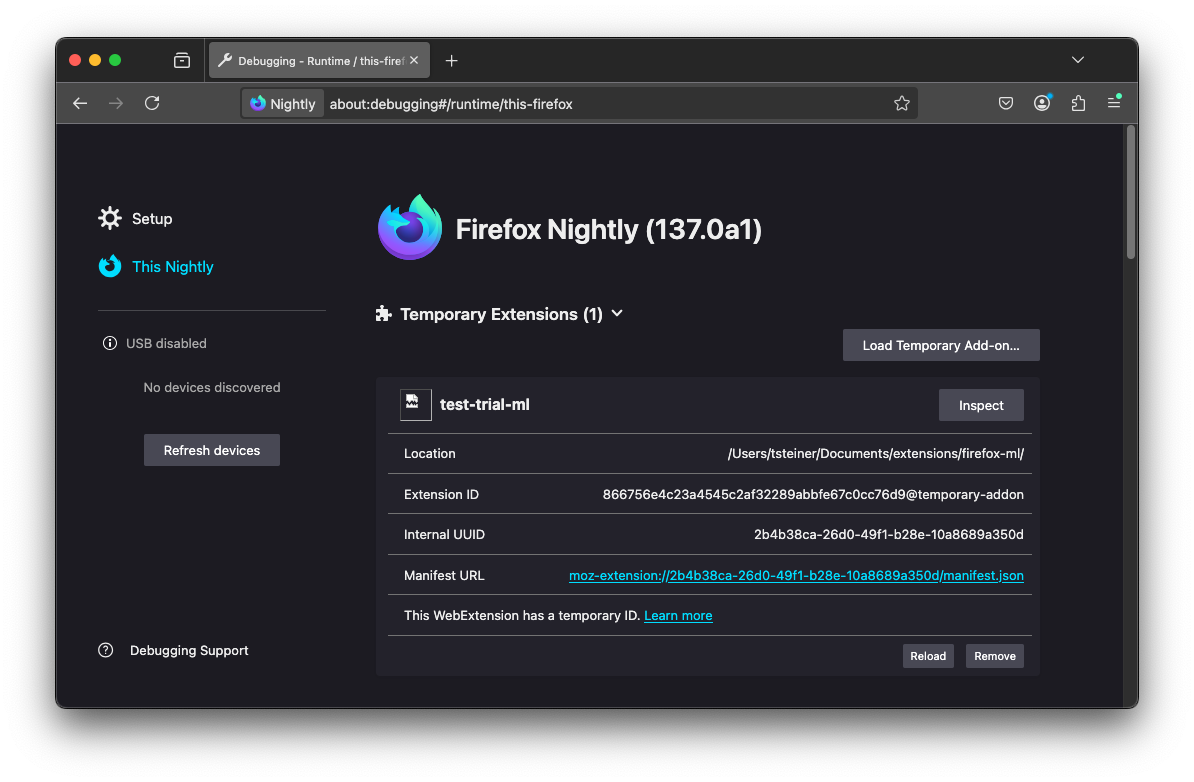
    Special about:debugging page in Firefox Nightly.

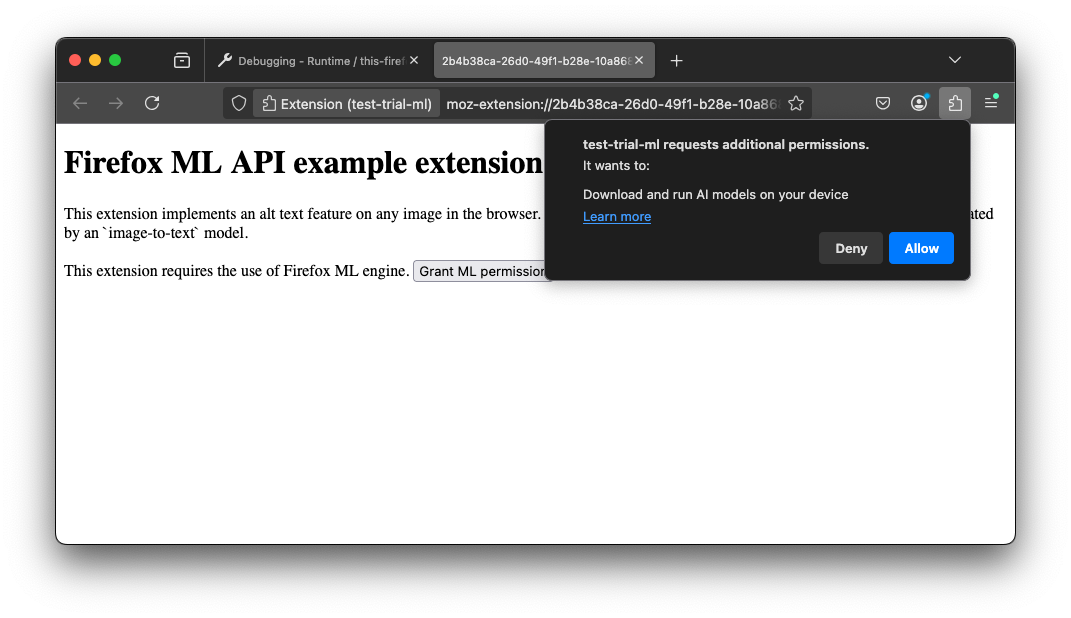
  4. After loading the extension, you're brought to the welcome page, where you need to grant the ML permission. The permission reads "Example extension requests additional permissions. It wants to: Download and run AI models on your device". In the manifest.json, it looks like this:

    {
      "optional_permissions": ["trialML"]
    }

    Permission dialog that reads "Example extension requests additional permissions. It wants to: Download and run AI models on your device

  5. After granting permission, right-click any image on a page, for example, Unsplash. In the context menu, select ✨ Generate Alt Text.
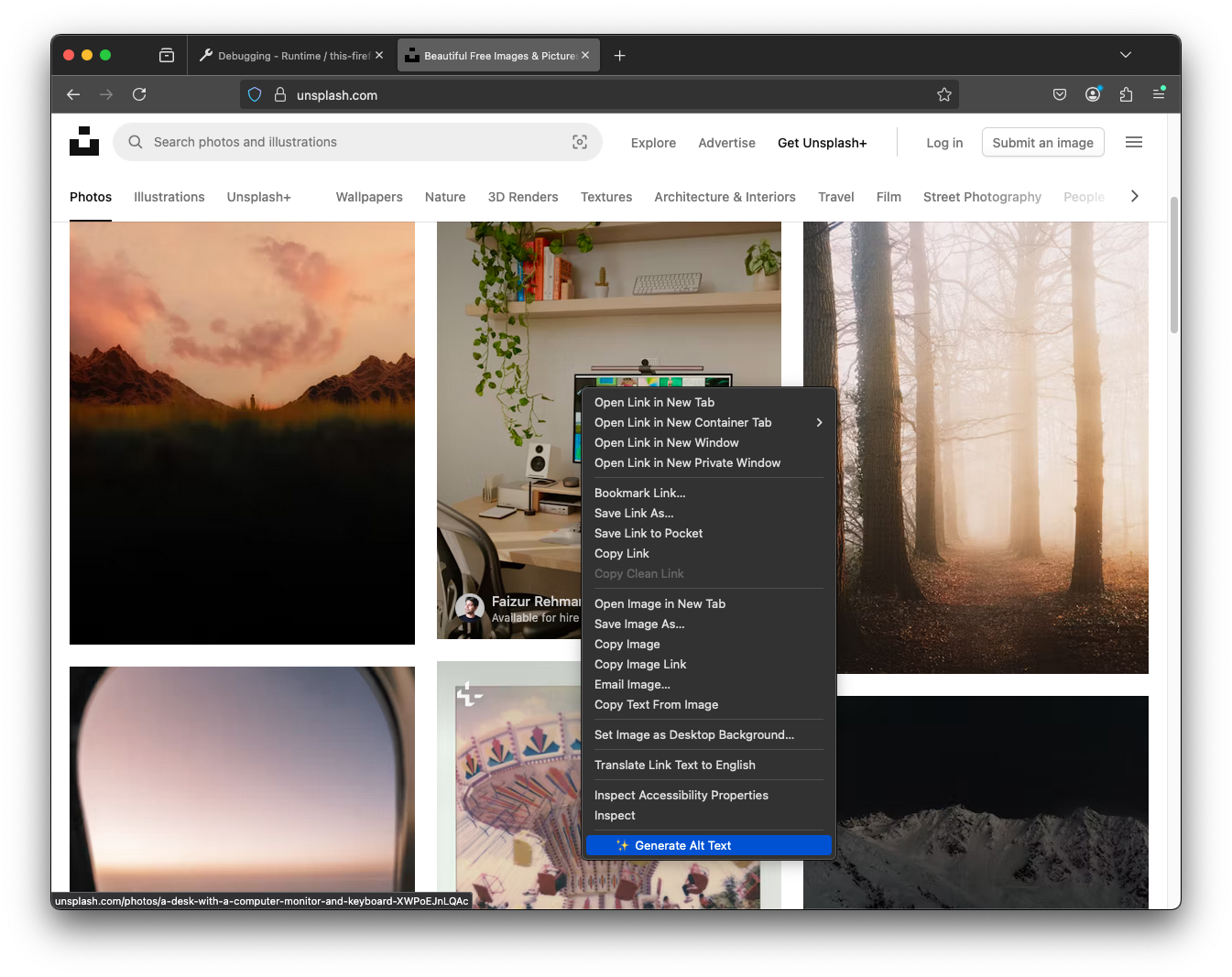
    Context menu with the "✨ Generate Alt Text" option.

  6. If this was the first time, this triggers the download of the model. On the JavaScript code side, this is the relevant part:

    // Initialize the event listener
    browser.trial.ml.onProgress.addListener((progressData) => {
      console.log(progressData);
    });
    
    // Create the inference engine. This may trigger model downloads.
    await browser.trial.ml.createEngine({
      modelHub: 'mozilla',
      taskName: 'image-to-text',
    });

    You can see the extension display download progress in the lower left corner.
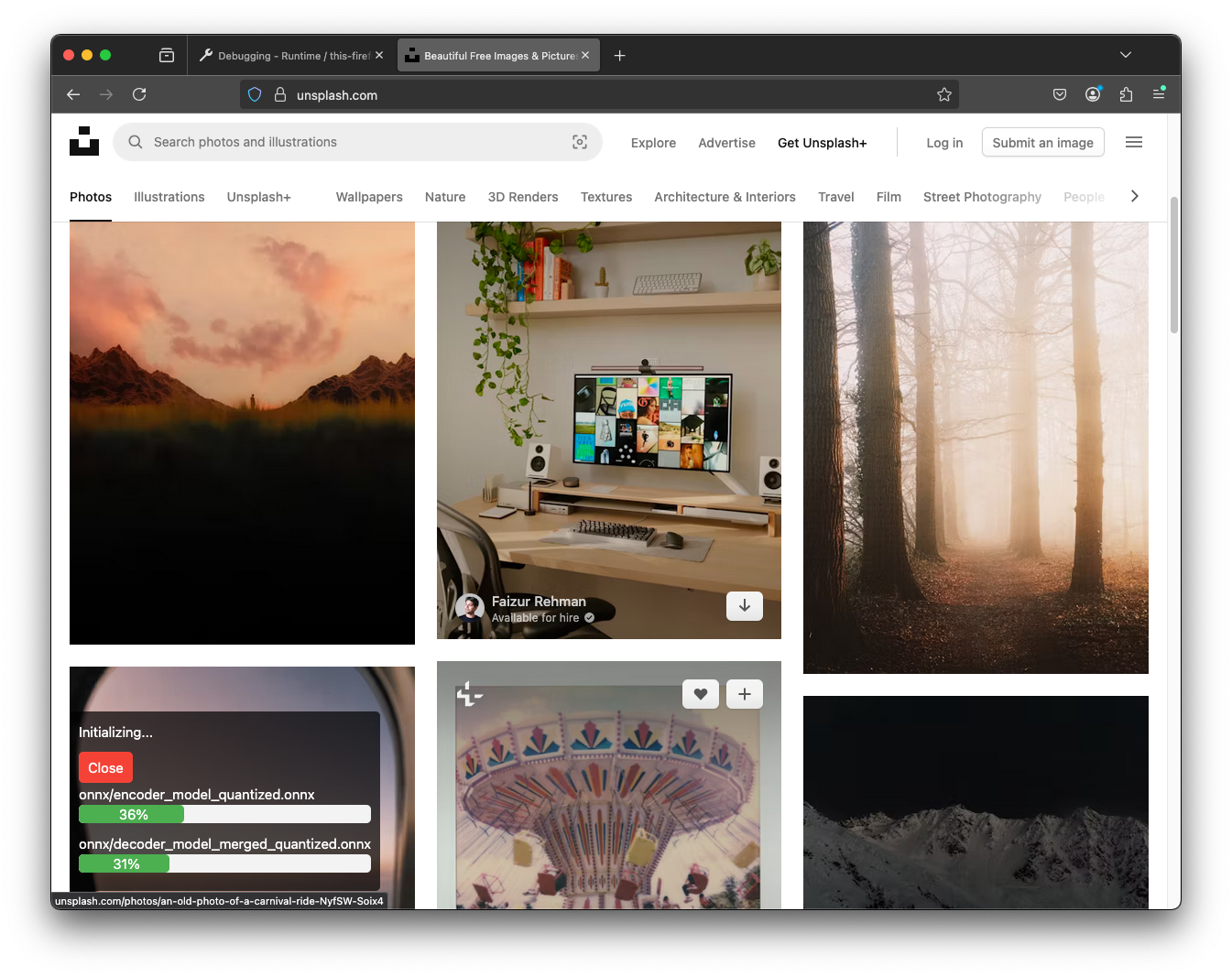
    Model download progress as an injected overlay on the Unsplash homepage.

  7. Once the model download is complete, the inference engine is ready to run.

    // Call the engine.
    const res = await browser.trial.ml.runEngine({
      args: [imageUrl],
    });
    console.log(res[0].generated_text);

    It's not the most detailed description, but "A computer desk with a monitor, keyboard, and a plant" definitely isn't wrong.
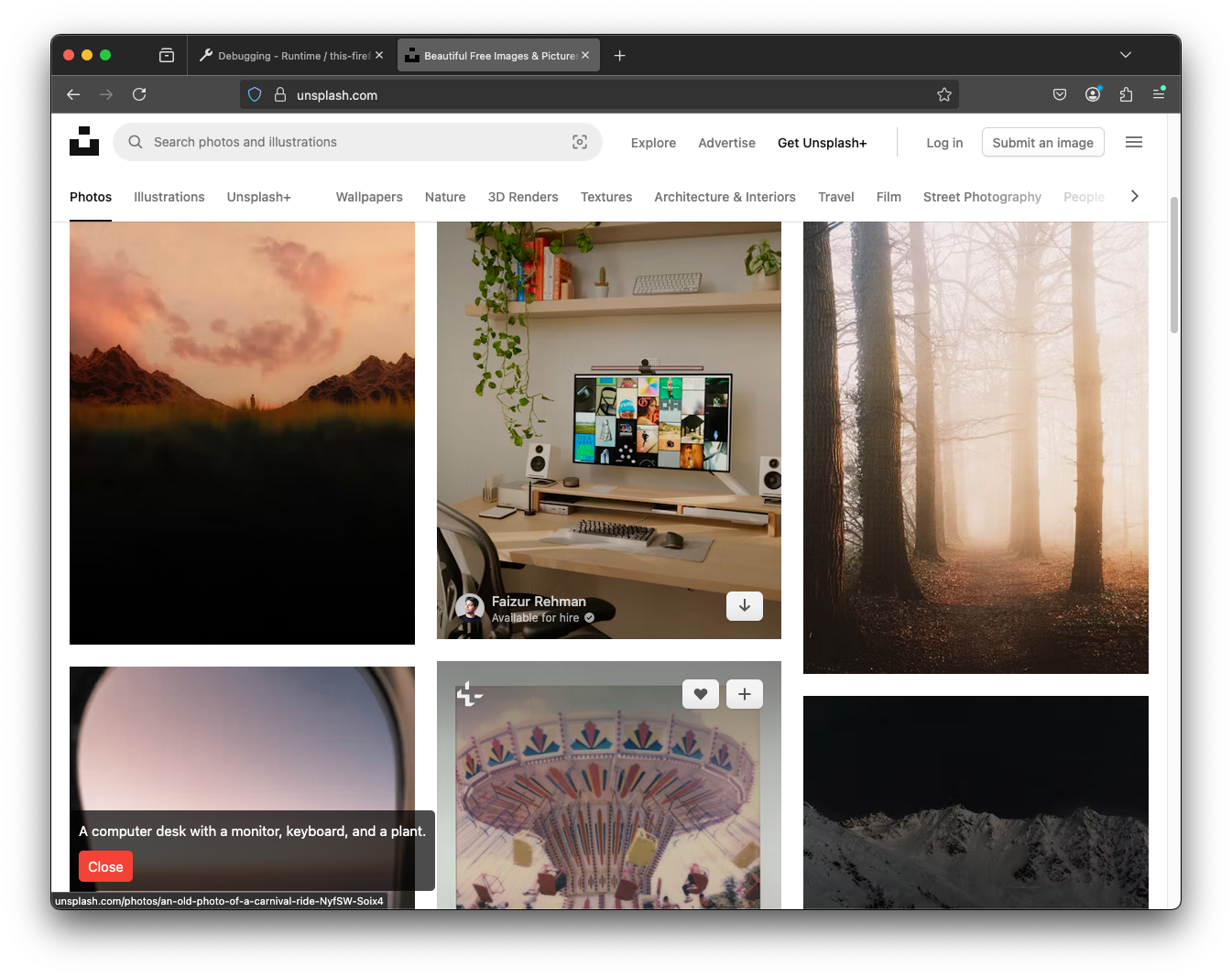
    Injected overlay with an accurate image description on the Unsplash homepage.

    If you click Inspect on the extension debugging page, you can play with the WebExtensions AI APIs directly.
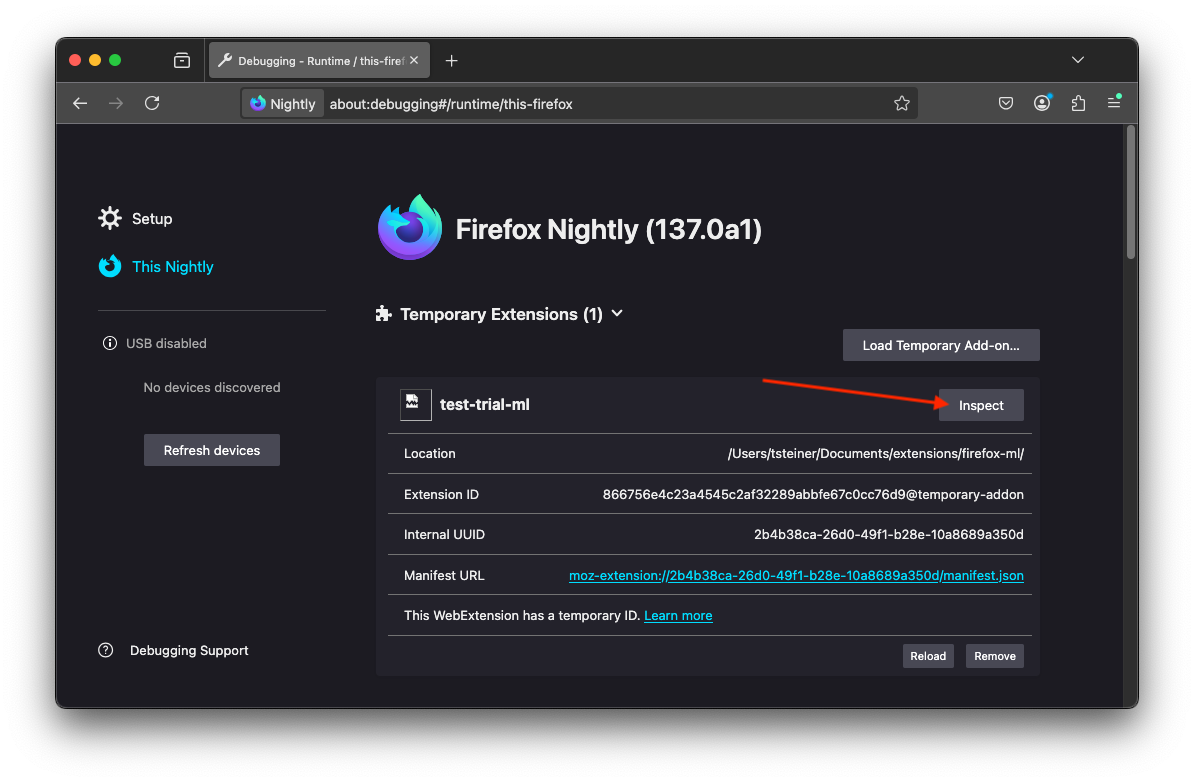
    Special about:debugging page with the Inspect button highlighted.

  8. The browser.trial.ml namespace exposes the following functions:

    • createEngine(): creates an inference engine.
    • runEngine(): runs an inference engine.
    • onProgress(): listener for engine events
    • deleteCachedModels(): delete model(s) files
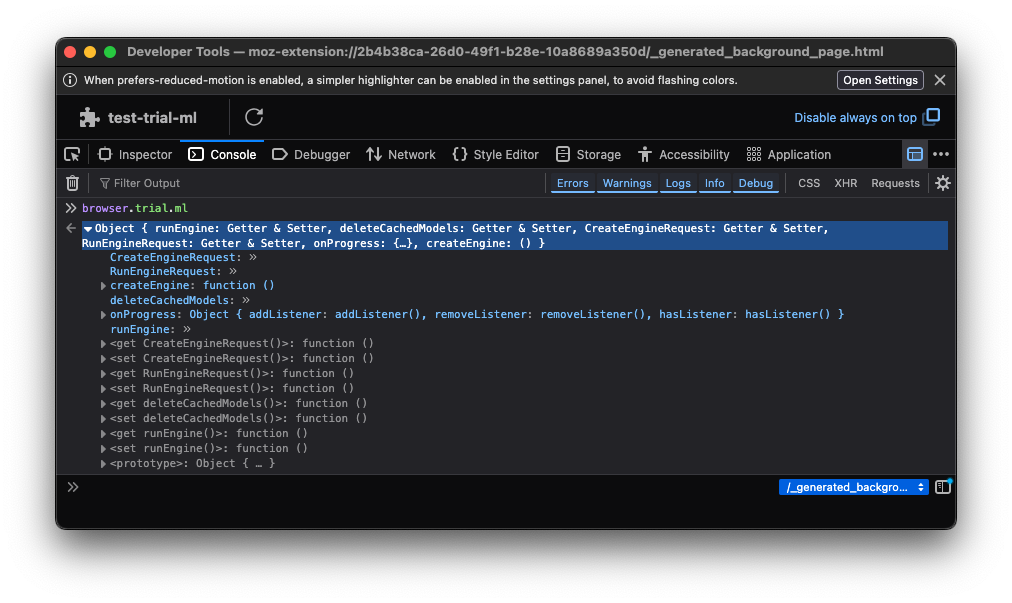
    Firefox DevTools window shown inspecting the  namespace.

    I played with various tasks, and initially, I had some trouble getting translation to run, so I hopped on the firefox-ai channel on the Mozilla AI Discord, where Tarek Ziade from the Firefox team helped me out and also pointed me at about:inference, another cool special page in Firefox Nightly where you can manage the installed AI models. If you want to delete models from JavaScript, it seems like it's all or nothing, as the deleteCachedModels() function doesn't seem to take an argument. (It also threw a DOMException when I tried to run it on Firefox Nightly 137.0a1.)

    // Delete all AI models.
    await browser.trial.ml.deleteCachedModels();
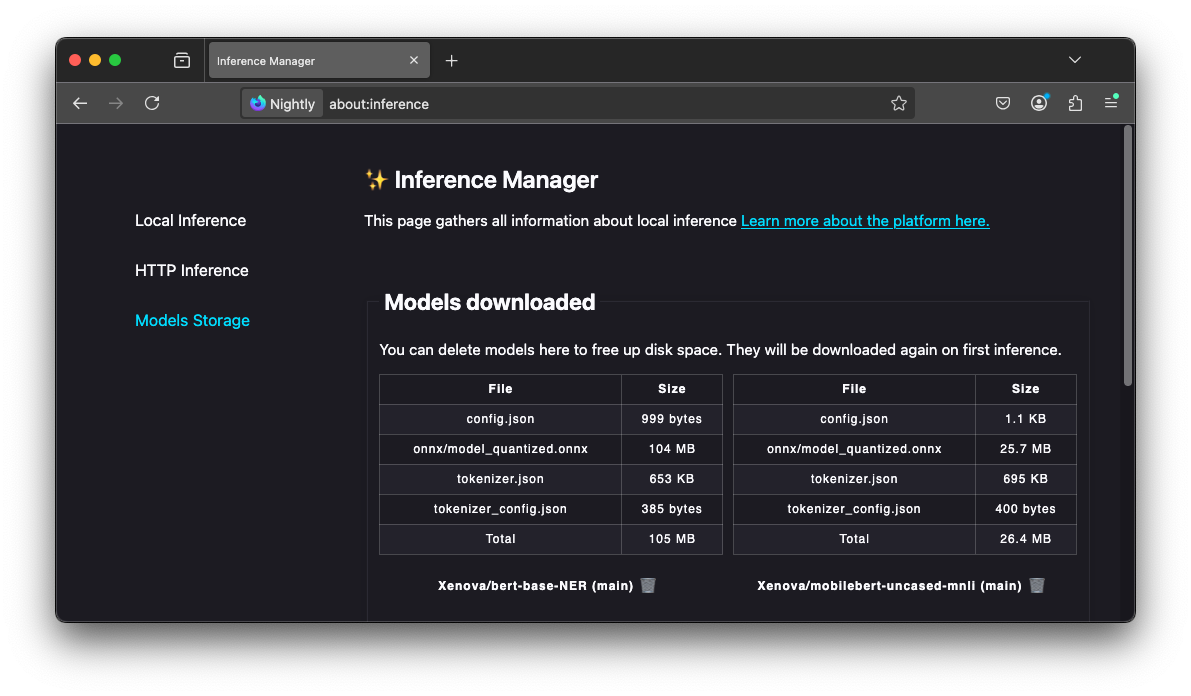
    Inference manager on about:inference special page with overview of downloaded models.

  9. The about:inference page also lets you play directly with many AI tasks supported by Transformers.js and hence Firefox WebExtensions AI APIs.
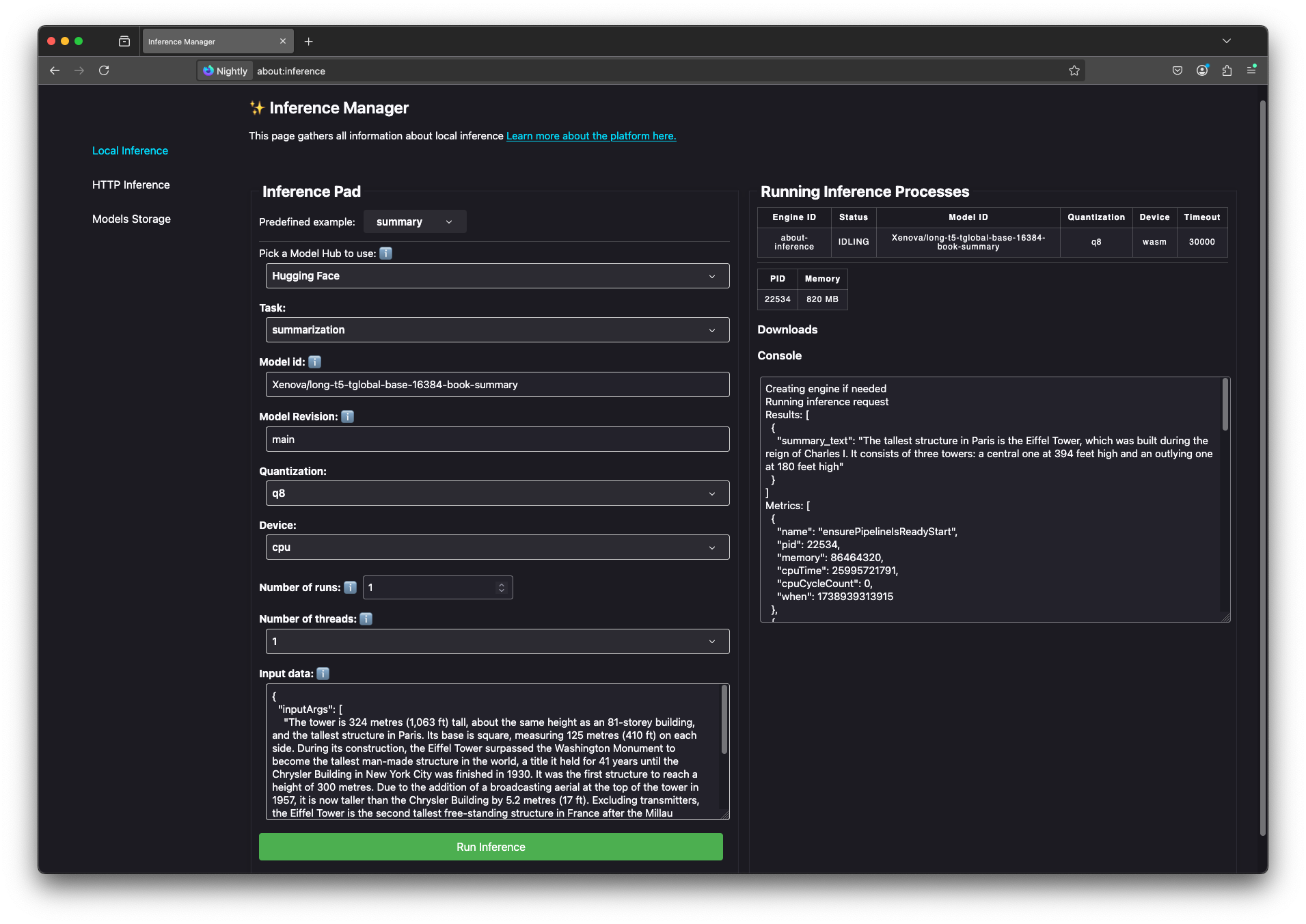
    Inference manager on about:inference special page with options to test the available models.

Concluding, I think this is a very interesting way of working with AI inference in the browser. The obvious downside is that you need to convince your users to download an extension, but the obvious upside is that you possibly can save them from having to download a model they may already have downloaded and stored on their disk. When you experiment with AI models a bit, disk space can definitely become a problem, especially on smaller SSDs, which led me to a fun random discovery the other day, when I was trying to free up some disk space for Gemini Nano…

As teased before, Chris, François, and I have some ideas around cross-origin storage in general, but the Firefox WebExtensions AI APIs definitely solve the problem for AI models. Be sure to read their documentation and play with their demo extension! On the Chrome team, we're experimenting with built-in AI APIs in Chrome. It's a very exciting space for sure! Special thanks again to Tarek Ziade on the Mozilla AI Discord for his help in getting me started.

Thomas Steiner
This post appeared first on https://blog.tomayac.com/2025/02/07/playing-with-ai-inference-in-firefox-web-extensions/.
Testing browser-use, a scriptable AI browser agent

I'm not a big LinkedIn user, but the other day, my Google colleague Franziska Hinkelmann posted something about a project called browser-use that caught my eye:

Got low stakes repetitive tasks in the browser? Playwright + LLMs (Gemini 2.0) to the rescue! Super easy to make somebody else cough agents cough do the work for you, especially if you have to repeat a task for many rows in a Google Sheet.

After seeing her demo, I went and tried it out myself. Here are the steps that worked for me on macOS:

  1. Install uv following their installation instructions. (The usual caveat of first checking the source code before pasting anything in the Terminal applies.)

    curl -LsSf https://astral.sh/uv/install.sh | less
  2. Create a new Python environment and activate it. This is from browser-use's quickstart instructions.

    uv venv --python 3.11
    source .venv/bin/activate
  3. Install the dependencies and Playwright.

    uv pip install browser-use
    playwright install
  4. Create a .env file and add your OpenAI API key in the form OPENAI_API_KEY=abc123.

  5. Create an agent.py file with the source code of your agent. Here's the one I tried. As you can see, I'm tasking the agent with the following job: "Go to developer.chrome.com and find out what built-in AI APIs Chrome supports".

    from langchain_openai import ChatOpenAI
    from browser_use import Agent
    import asyncio
    from dotenv import load_dotenv
    load_dotenv()
    
    async def main():
        agent = Agent(
            task="Go to developer.chrome.com and find out what built-in AI APIs Chrome supports.",
            llm=ChatOpenAI(model="gpt-4o"),
        )
        result = await agent.run()
        print(result)
    
    asyncio.run(main())

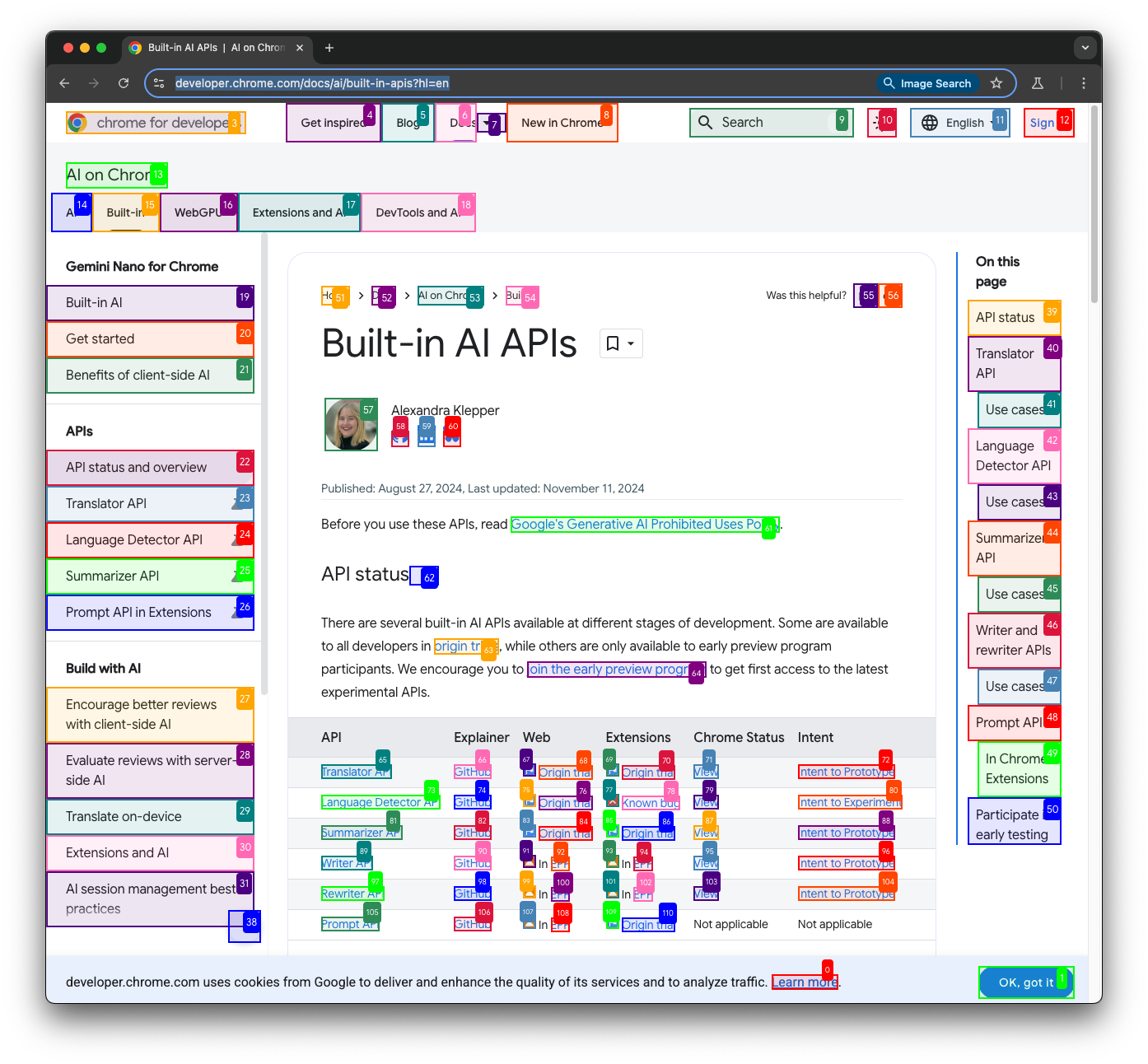
The coolest thing is that you can watch the agent do its job in real time and see the reasoning steps in the command line.

Headless browser window with all UI elements annotated.

Here's an excerpt of the logs.

INFO     [agent] 🚀 Starting task: Go to developer.chrome.com and find out what built-in AI APIs Chrome supports.
INFO     [agent] 📍 Step 1
INFO     [agent] 🤷 Eval: Unknown - It's the starting state.
INFO     [agent] 🧠 Memory: Start searching for built-in AI APIs supported by Chrome on developer.chrome.com.
INFO     [agent] 🎯 Next goal: Navigate to developer.chrome.com
INFO     [agent] 🛠️  Action 1/1: {"go_to_url":{"url":"https://developer.chrome.com"}}
INFO     [controller] 🔗  Navigated to https://developer.chrome.com
INFO     [agent] 📍 Step 2
INFO     [agent] 👍 Eval: Success - Navigated to the correct URL.
INFO     [agent] 🧠 Memory: Visited developer.chrome.com. Need to search for information on built-in AI APIs supported by Chrome.
INFO     [agent] 🎯 Next goal: Use search input to find information on AI APIs.
INFO     [agent] 🛠️  Action 1/1: {"click_element":{"index":9}}
INFO     [controller] 🖱️  Clicked button with index 9:
INFO     [agent] 📍 Step 3
INFO     [agent] 👍 Eval: Success - The search bar was clicked but no input was entered yet.
INFO     [agent] 🧠 Memory: Need to input search query about AI APIs in Chrome using the search bar.
INFO     [agent] 🎯 Next goal: Enter 'AI APIs' in the search input to find relevant information.
INFO     [agent] 🛠️  Action 1/1: {"input_text":{"index":4,"text":"AI APIs"}}
INFO     [controller] ⌨️  Input AI APIs into index 4
[]

At the end of the log messages is the agent's full response to your task, formatted in Markdown. FWIW, the answer is exactly correct:

Chrome supports several built-in AI APIs, including:

  1. Translator API - Available in origin trial for early preview participants. Use cases include on-demand translation and supporting multi-language communication.
  2. Language Detector API - Available in Chrome origin trial. It helps detect languages without user input and can label texts for better screen reader pronunciation.
  3. Summarizer API - Allows for local experimentation to preview program participants. It can summarize meeting transcripts, articles, and forum questions.
  4. Writer and Rewriter APIs - Experimental status in early preview program, used for creating and refining text content.
  5. Prompt API - Allows natural language requests to Gemini Nano in Chrome, in an experimental early stage.

Visit developer.chrome.com for complete details and participation in early trials.

It's pretty wild what this scriptable agent is capable of doing today. Be sure to check out some of the other demos and also try the browser-use web-ui, which adds a nice UI on top.

Thomas Steiner
This post appeared first on https://blog.tomayac.com/2025/02/05/testing-browser-use-a-scriptable-ai-browser-agent/.